Writing Effective Alt Text
What alt text is and why it matters
A text alternative inside the image element
Alternative text (alt text) is a concise description of an image, stored in the alt attribute of the <img> HTML tag. When a screen reader encounters the image, it announces the alt text. This allows the user to grasp the image's meaning and purpose within the page's context.
Benefits beyond screen reader users
Well-written alt text helps more people than screen reader users alone:
-
Accessibility for people with visual impairments - it provides an equivalent text alternative, so people who cannot view the image still understand its content and function.
-
Context when images fail to load - if an image does not load, the browser can display the alt text in its place, giving sighted users an idea of what they are missing.
-
Search engine optimization (SEO) - search engines use alt text to understand image content, which can improve search rankings.
-
Accessibility for low-bandwidth users - when images load slowly or not at all, alt text provides immediate context.
-
Support for technical applications - digital assistants and artificial intelligence can use alt text to understand and process visual content.
When an image needs alt text
Every image that contributes meaningfully to the content or functionality of a webpage requires alt text. Even when a caption accompanies an image, alt text might still be needed to give screen reader users a succinct alternative.
Alt text by image type
The right approach to alt text depends on the image's purpose and context. Images generally fall into three categories: decorative, functional, and informative. For help classifying an image, refer to Identifying Image Types for Writing Alt Text.
Decorative images
Keep the alt attribute empty
Decorative images convey no essential information and have no functional purpose they exist purely for visual enhancement. Examples include stock photos used for aesthetic appeal, ornamental borders, background patterns, and icons used solely for visual style.
For these images, use an empty alt attribute (alt=""). This signals to screen readers that the image is non-essential and should be skipped, preventing unnecessary noise.
Note: Include the empty alt attribute rather than omitting it. Without any alt attribute, some screen readers announce the image's file name, which is usually meaningless.
A subtle floral pattern used as a page divider carries no meaning, so its alt attribute stays empty:
<img src="floral-divider.png" alt="">Prefer CSS for purely visual images
When possible, implement decorative images as CSS background images rather than <img> tags. This removes the need for alt text and keeps the HTML cleaner for semantic content.
Functional images
Describe the action, not the appearance
Functional images are interactive elements that start an action: links, buttons, or icons that perform a task. Their alt text should describe what happens when the image is activated, not what the image looks like.
A logo that links to the homepage is named for its destination:
<a href="/"><img src="logo.png" alt="[Your Website Name] home"></a>A printer icon that starts printing, or a download icon that triggers downloading a file are named for its action:
<a href="javascript:print()">
  <img src="print-icon.png" alt="Print this page">
</a>


<a href="/path-to-file.pdf">
  <img src="download-icon.png" alt="Download this page">
</a>
A magnifying glass icon that submits a search is named "Search":
<button type="submit"><img src="search-icon.png" alt="Search"></button>When an image alone signifies a link's destination, the alt text names that destination:
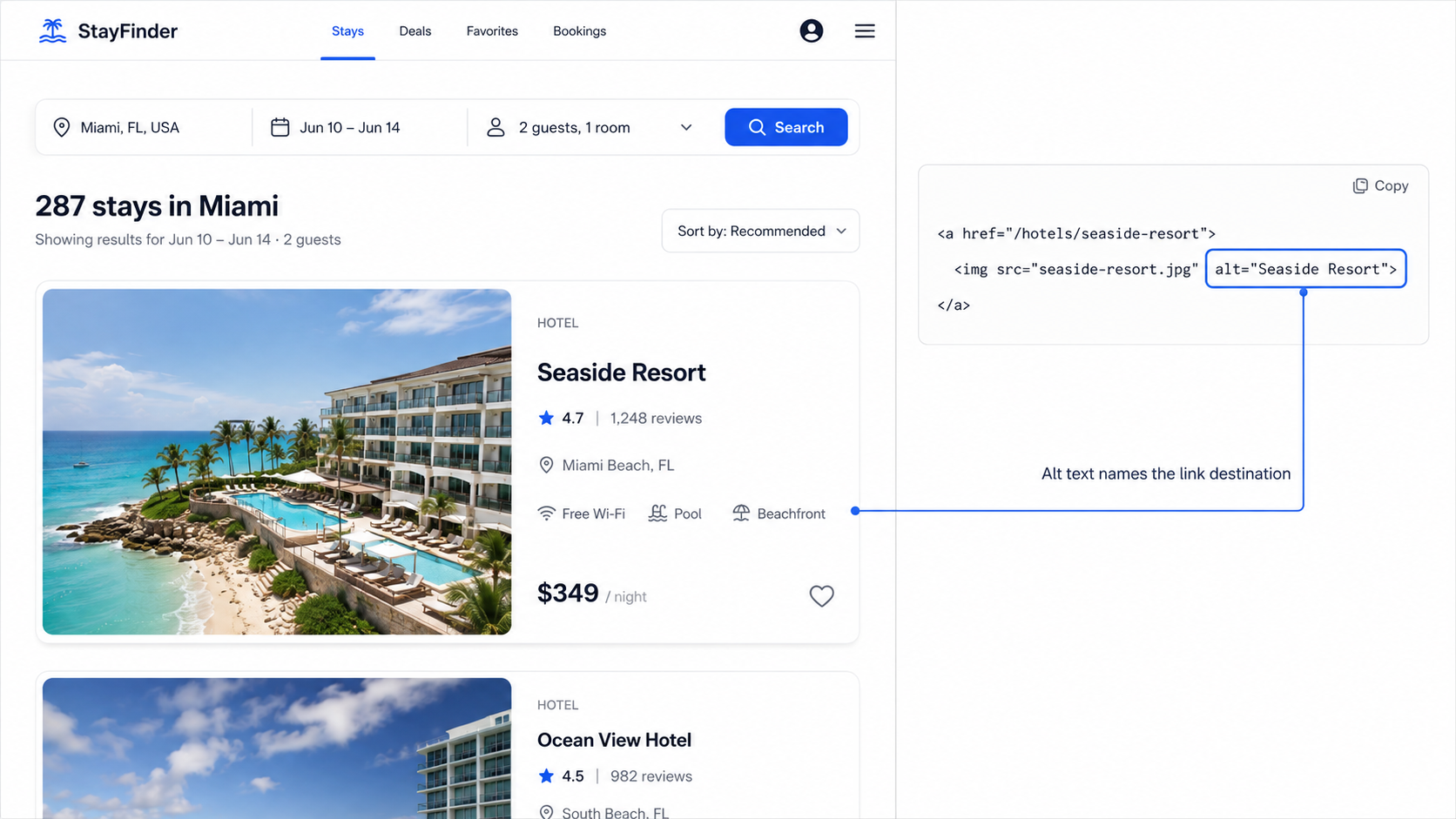
<a href="/hotels/seaside-resort"><img src="seaside-resort.jpg" alt="Seaside Resort"></a>Avoid redundant alt text
When descriptive text accompanies a functional image inside the same link or button, the image is decorative in that context. Give it an empty alt attribute so the accessible name is not announced twice.
A "Book Now" button with a calendar icon needs no alt text on the icon:
<button type="button">
  <img src="calendar-icon.png" alt=""> Book Now
</button>
Informative images
Describe the meaning in context
Informative images convey content that is essential for understanding the page. Their alt text should accurately and concisely describe the information being presented, focusing on the image's purpose within the surrounding context. Informative images can be further divided into short and complex.
Short informative images
Short informative images convey a single main idea that fits in a short phrase or sentence, typically within 150 characters. This category includes photographs, illustrations, uncomplicated graphs, and graphic-based logos.
Guidelines for writing their alt text:
-
Be concise and to the point
-
Communicate the same information as the visual content, in the context of the surrounding text
-
Refer to relevant content, not just how the image looks
-
Do not start with "image of" or "photo of", because screen readers already announce the presence of an image
-
Include essential text that is part of the image
-
End the alt text with a period so screen readers pause
-
Front-load the most important information
Context changes the description
The same photograph needs different alt text in different contexts. In a text about birds that lead mixed-species flocks, a brief identification is enough:

<img src="chickadee.jpg" alt="A chickadee perched on a branch.">In a text about the black-capped chickadee's winter adaptations, the details matter:
<img src="chickadee.jpg" alt="A black-capped chickadee perched on a snowy branch with fluffed feathers.">Include text that appears in the image
A logo with a tagline includes the tagline in its alt text:

<img src="company-logo.png" alt="Aurora Technologies logo with tagline: A brighter Tomorrow, Together.">A product image of a t-shirt with printed text includes that text:

<img src="warriors-shirt.jpg" alt="White t-shirt with an illustration of mountains and sun rising behind them, and fir trees in front of them. Below there is black text saying, 'Good Things Take Time'.">Complex informative images
Complex informative images contain substantial information that a short phrase cannot cover, such as charts, graphs, diagrams, maps, infographics, and screenshots containing text.
These images often require a two-part text alternative:
-
A short alt text that identifies the type of image and briefly summarizes its purpose or main takeaway.
-
A longer, more detailed description of the information, provided elsewhere on the page or linked from the image.
Strategies for providing long descriptions
-
Fold the image's information into the surrounding page copy. This can make the image redundant and remove the need for extensive alt text
-
Add a caption directly above or below the image with a more detailed explanation
-
Provide a text link adjacent to the image that leads to the long description, on a separate page or elsewhere on the same page
-
Use the
<figure>and<figcaption>elements to semantically group the image with its detailed description -
Use the
aria-describedbyattribute to link the image to an element on the same page containing the long description
Note: The longdesc attribute also links to a long description, but it has inconsistent support across browsers and assistive technology and is considered obsolete. The aria-describedby approach has its own limit: the referenced element is treated as plain text, without structural information.
A bar chart pairs a short alt text with a detailed description in a <figcaption>:
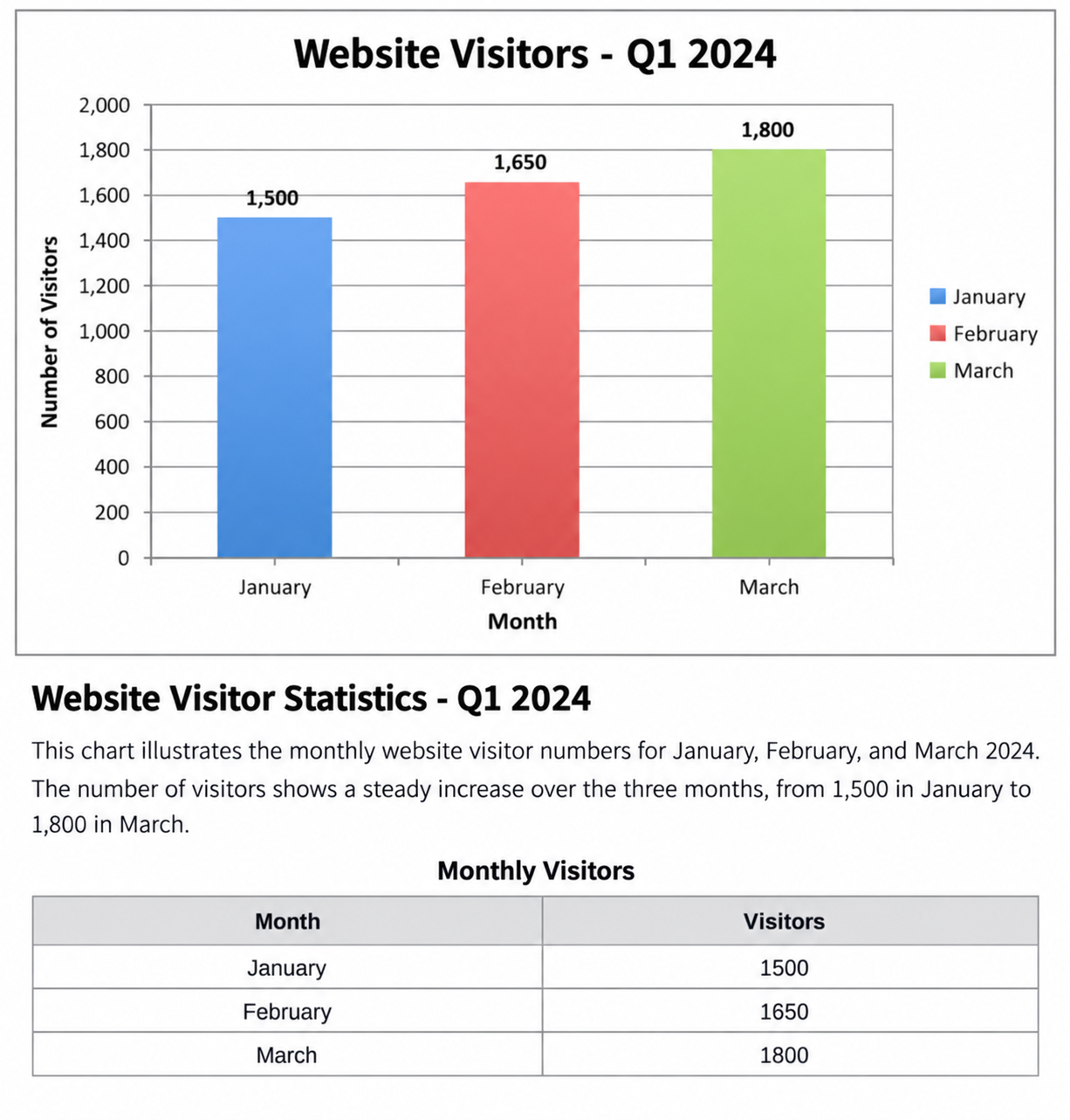
<figure>
  <img src="visitor-chart.png" alt="Bar chart showing monthly website visitors for the first quarter of 2024. Detailed description below.">
  <figcaption>
    <h3>Website Visitor Statistics - Q1 2024</h3>
    <p>This chart illustrates the monthly website visitor numbers for January, February, and March 2024...</p>
    <table>
      <caption>Monthly Visitors</caption>
      <thead>
        <tr><th>Month</th><th>Visitors</th></tr>
      </thead>
      <tbody>
        <tr><td>January</td><td>1500</td></tr>
        <tr><td>February</td><td>1650</td></tr>
        <tr><td>March</td><td>1800</td></tr>
      </tbody>
    </table>
  </figcaption>
</figure>
A process diagram points to an explanation in the body text:
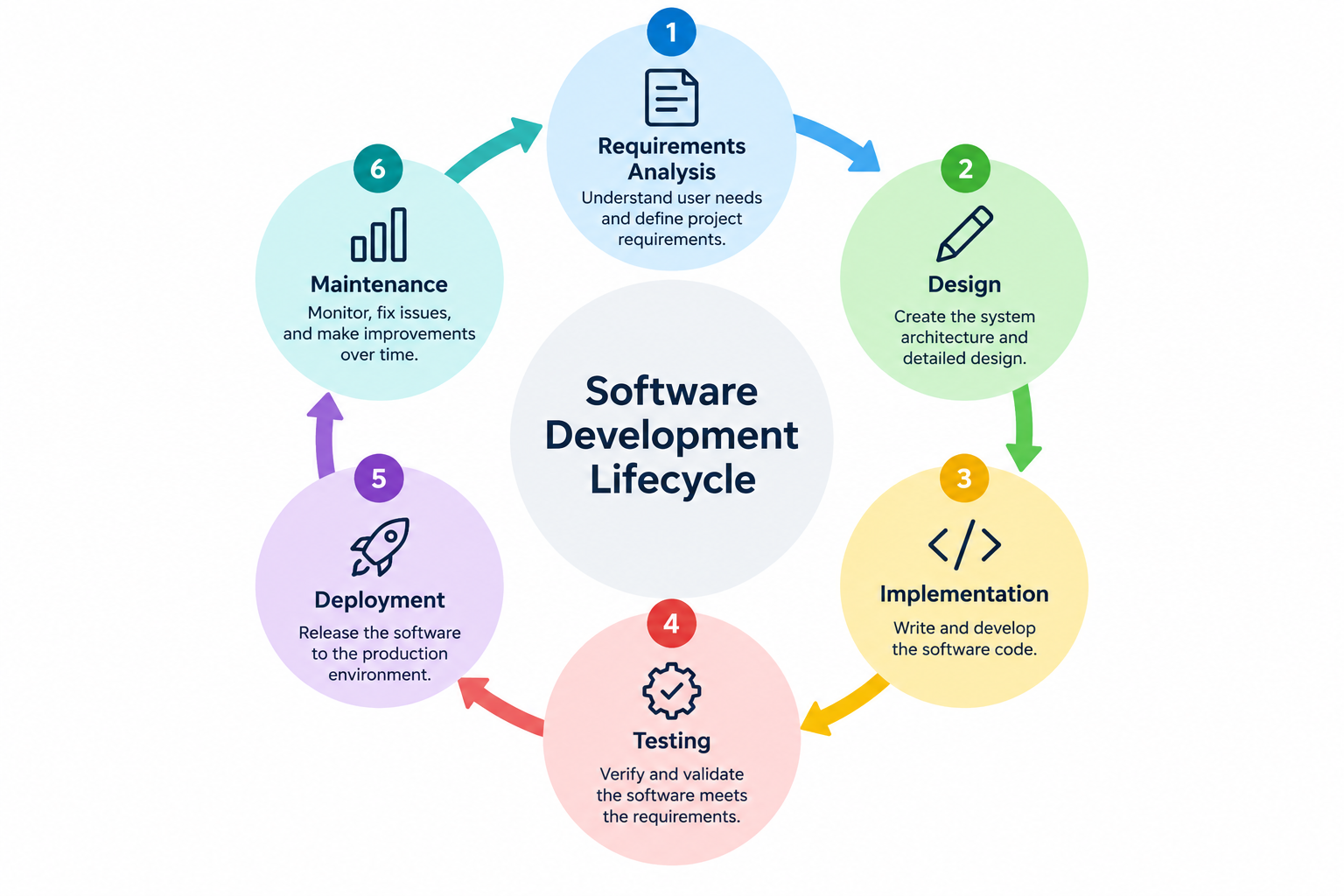
<img src="software-diagram.png" alt="Diagram illustrating the stages of the software development lifecycle. A detailed explanation follows.">
<p>The software development lifecycle involves several key stages, starting with Requirements Analysis...</p>
General best practices
Habits that improve every description
-
Keep it concise aim for a short phrase or one to two sentences, and use long description methods when more detail is needed
-
Be accurate and provide equivalent information the alt text should convey the same meaning and context as the image
-
Consider the context understand why the image is on the page and what it is meant to convey there
-
Focus on the purpose describe what the image does (functional) or what it means (informative), rather than only its appearance
-
Avoid redundancy do not repeat information already present in the surrounding text
-
Spell correctly spelling errors lead to mispronunciation by screen readers
-
Use proper punctuation; it helps screen readers pause appropriately, improving comprehension
-
Maintain consistency use the same alt text for the same image across contexts when its purpose stays the same
-
Test your alt text use accessibility checkers and, ideally, test with screen reader users
Common mistakes to avoid
Patterns that undermine accessibility
-
Using generic descriptions like "image" or "graphic"
-
Writing overly long descriptions for images with one main idea
-
Describing the visual appearance without conveying the meaning or function
-
Repeating the image's file name or URL as alt text
-
Including decorative elements in the alt text of informative images
-
Forgetting alt text altogether on meaningful images
-
Using alt text solely for keyword stuffing for SEO purposes
-
Not updating alt text when the image's content or purpose changes
The role of AI in alt text generation
AI cannot replace human judgment
Artificial intelligence tools are becoming increasingly capable at image recognition, but they cannot yet reliably write good alt text on their own. AI can describe what it detects in an image. It often struggles to understand the context, intention, and unique value of that image within a webpage.
How to use AI well
AI can help refine alt text or suggest descriptions for redundant or short informative images but human review and editing are essential. If you use AI for assistance, write prompts that include the context, the image's purpose, and the desired length. Relying solely on AI-generated alt text can produce inaccurate, incomplete, or meaningless descriptions.
Conclusion
Equivalent experience, not just description
Writing effective alt text is a fundamental part of web accessibility. By understanding the different image types, following best practices, and avoiding common mistakes, you improve the experience for people using assistive technology. Alt text is not just about describing an image, it provides an equivalent experience, so all users can access the content conveyed through visuals.