NVDA on Windows
This guide is for developers, product managers, and auditors who don't work with assistive technology (AT) day to day. It walks you through NVDA, a free screen reader for Windows, so you can confirm accessibility issues on your own pages. If you're on a Mac, refer to the VoiceOver on Mac guide. The concepts are the same, only the keys differ.
Why this guide matters
Many accessibility issues can only be confirmed by using the page the way a screen reader user does. NVDA (NonVisual Desktop Access) is one of the most widely used desktop screen readers, and it's free and open-source. That makes it a practical addition to a regular QA routine, alongside automated tools like Evinced.
NVDA in a nutshell
NVDA reads the screen aloud and lets you operate Windows entirely from the keyboard. Like every screen reader, it reads the accessibility tree, the structured version of the page the browser exposes, not the pixels on screen.
You work with NVDA through three layers:
| Layer | What it controls | Sample keys (NVDA = the modifier, Insert or Caps Lock) |
|---|---|---|
| Browse cursor | Reads the page as a virtual document | H, next heading |
| Focus cursor | Operates focusable controls | Tab / Shift+Tab |
| Elements List | Lists headings, links, landmarks, and form fields | NVDA+F7 |
NVDA speaks through Windows text-to-speech voices, supports more than 55 languages, and can run portably from a USB stick handy for on-site test machines.
Note: Shortcuts in this guide use NVDA's default desktop keyboard layout. The laptop layout changes some of them.
Before you start: staying in control
The first time NVDA starts talking, it can feel overwhelming. That's normal, and you're always one key away from quiet:
-
Press Shift to pause speech, and Shift again to resume
-
Press Ctrl to stop the current announcement
-
Press NVDA+Q, then Enter, to quit NVDA completely
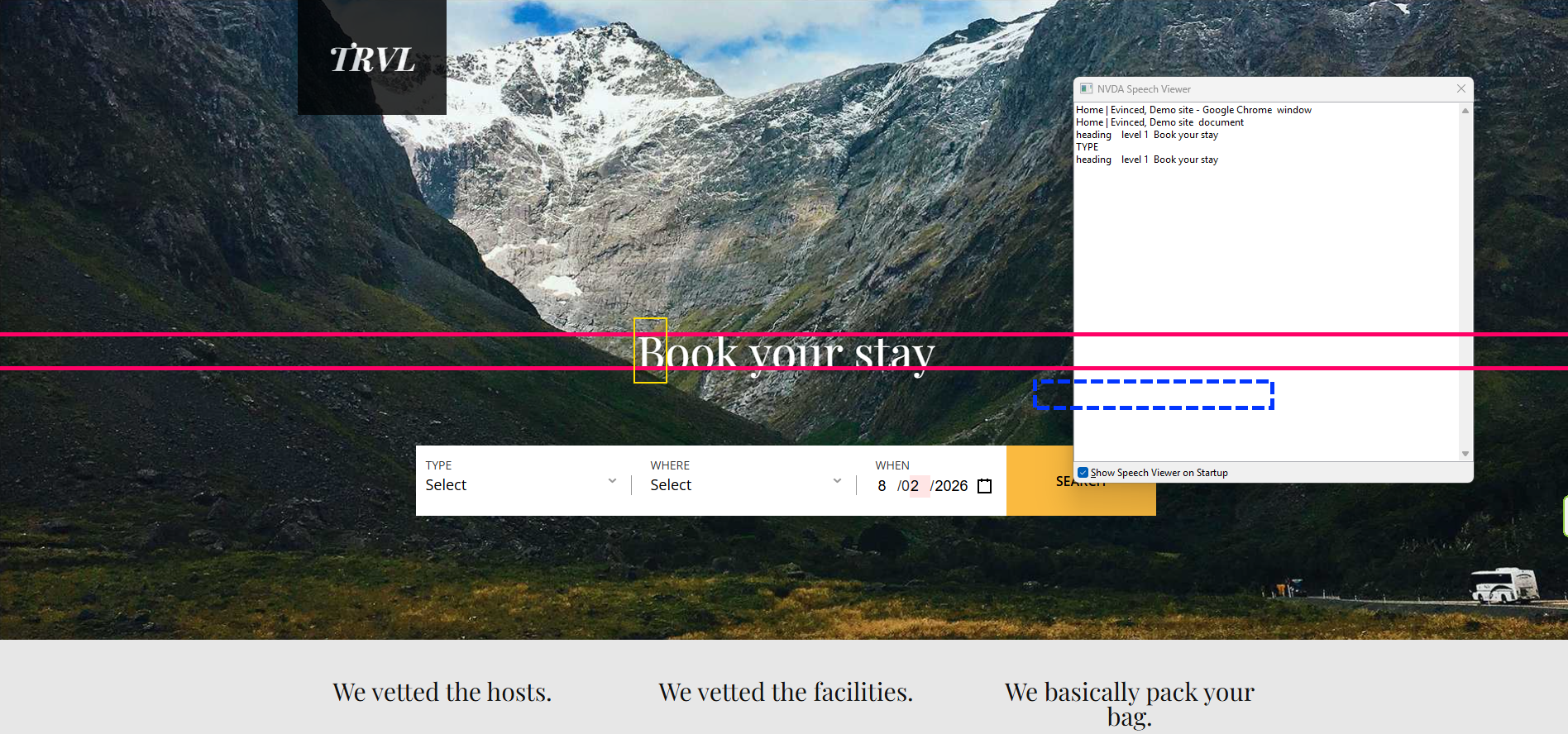
Note: NVDA can display everything it speaks as text in the Speech Viewer (NVDA+N › Tools › Speech Viewer). As a sighted tester, keep it open, it lets you read the announcements instead of relying on audio alone. You can also turn on a visual outline of NVDA's position under NVDA+N › Preferences › Settings › Vision › Focus Highlight.
Install and first-run checklist
-
Download NVDA from nvaccess.org and run the installer. Accept the User Account Control prompt, and keep "Create desktop shortcut" checked; it binds the Ctrl+Alt+N launch shortcut.
-
Start NVDA – Press Ctrl+Alt+N. It works from anywhere in Windows.
-
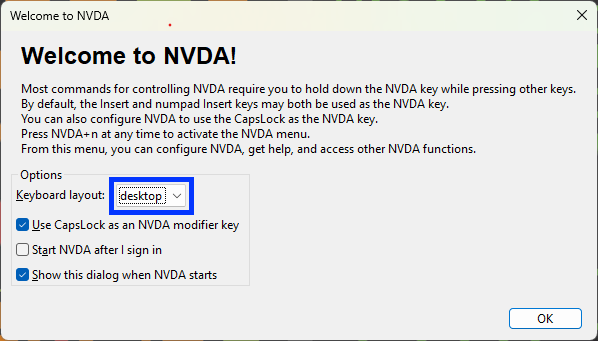
Set up the welcome dialog:
-
Check "Use CapsLock as an NVDA modifier key"; recommended on laptops, where the default modifier (Insert) is often missing
-
Leave "Start NVDA automatically" off for occasional testing
-
- Learn the basics – The built-in user guide (NVDA+N › Help › User Guide) opens with a short getting-started section. Reading it takes about ten minutes and covers everything in this guide's cheat sheet.
Note: Press NVDA+1 to turn on input help; NVDA then announces what each key combination does instead of running it. Press NVDA+1 again to turn it off.
Core concepts
The NVDA modifier
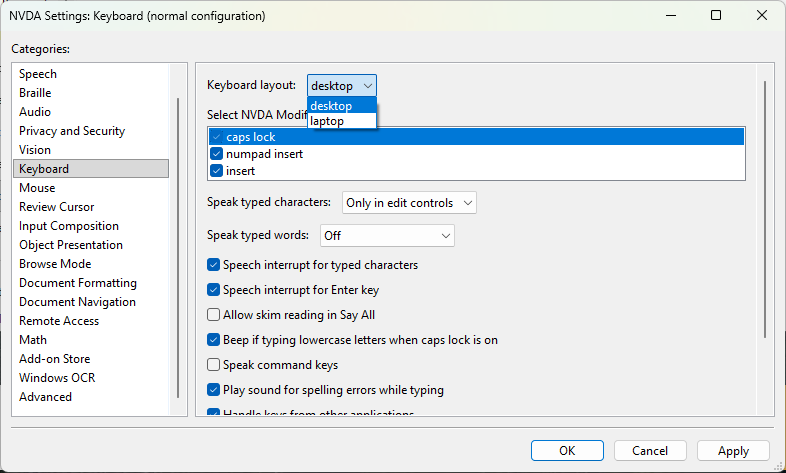
Most NVDA commands start with the NVDA key: Insert by default, or Caps Lock if you checked the welcome-dialog option. In NVDA+N › Preferences › Settings › Keyboard you can:
-
Choose which keys act as the modifier (Caps Lock, numpad Insert, or Insert)
-
Switch between the desktop and laptop keyboard layouts
Browse Mode vs. Focus Mode
NVDA opens web pages in Browse Mode, where the page is a virtual document you read with the arrow keys and single-letter shortcuts. When you land on an input field, NVDA switches to Focus Mode so normal typing works. You can switch manually with NVDA+Space a rising or falling sound confirms the change.
Single-letter navigation
In Browse Mode, single letters jump between elements: H for the next heading, D for the next landmark, K for the next link, F for the next form field. Add Shift to go backward. This is usually the fastest way for beginners to move through a page.
The Elements List
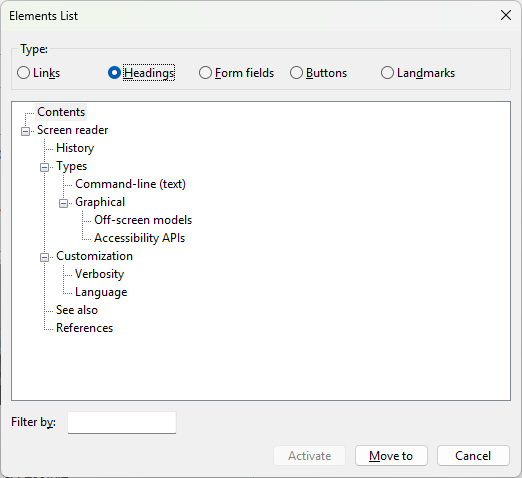
The Elements List is NVDA's answer to VoiceOver's Rotor. Press NVDA+F7, pick a tab (Links, Headings, Form Fields, Buttons, or Landmarks), and arrow through the list. Typing filters it. Press Enter to jump to the selected item.
Your first walkthroughs
How to read the tables
NVDA means the modifier key (Insert or Caps Lock). The announcement column is abridged the exact wording varies by NVDA version.
"Hello World" test in Microsoft Edge
| Step | Command | Announcement (abridged) |
|---|---|---|
| Start NVDA | Ctrl+Alt+N | "Welcome to NVDA…" |
| Open the address bar | Ctrl+L | "Address and search bar" |
| Load the demo page | Type example.com, then Enter | Page title |
| List the headings | NVDA+F7, then the Headings tab | The list indicates one heading |
| Jump to the heading | Press H | Reads the <h1> text |
| Switch to Focus Mode and back | NVDA+Space | A rising or falling sound |
| Stop speech and quit | Ctrl, then NVDA+Q and Enter | Speech stops |
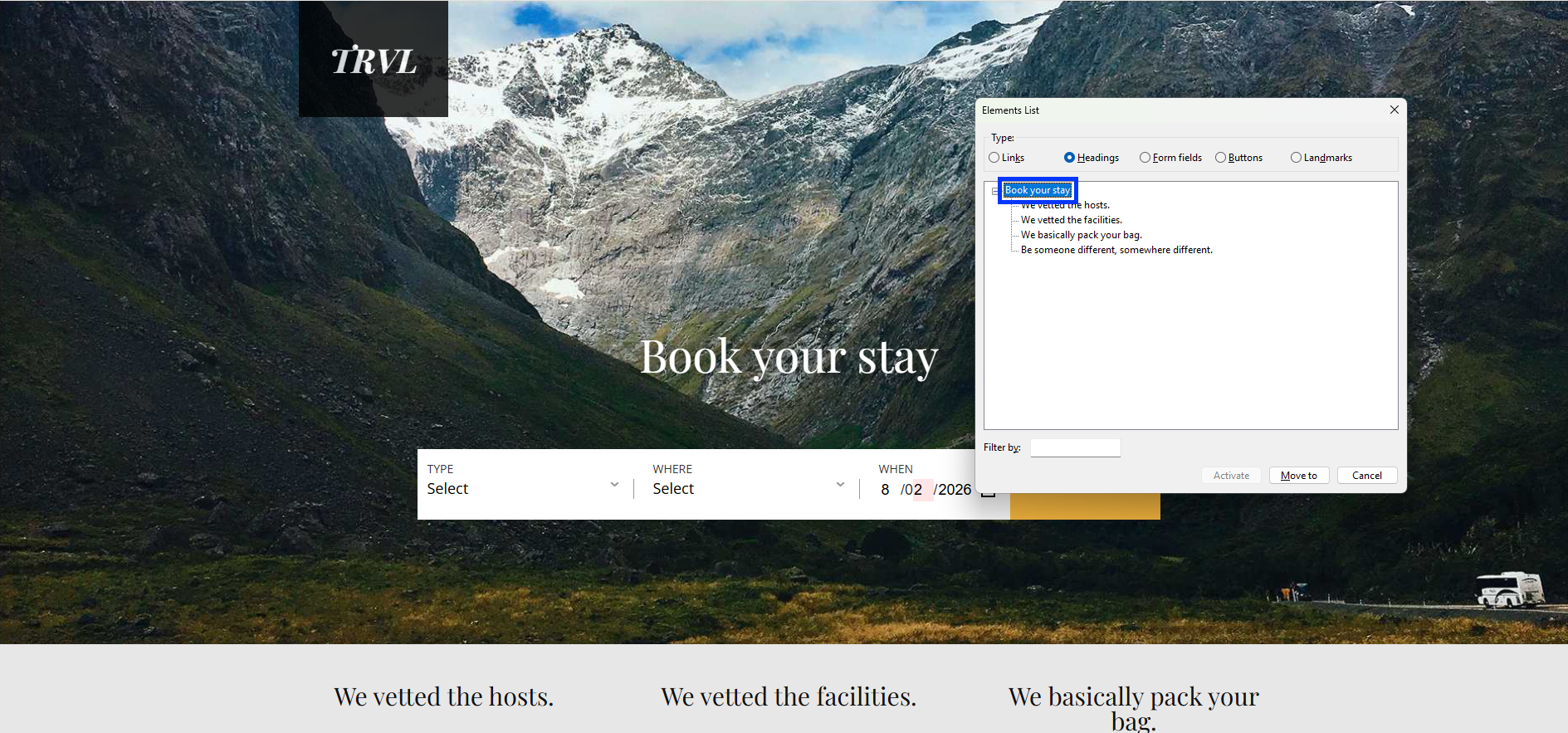
Landmark audit of a production page
-
Load the site under test (local dev server or staging).
-
Press NVDA + F7 and choose the Landmarks tab.
-
Press ↓ through the list and note missing or duplicated regions.
-
Press Enter on a landmark to jump to it.
-
Press D / Shift + D to move between landmarks on the page itself.
-
Press N / Shift + N (next block of text past the links) to confirm body copy is reachable.
-
Record any orphaned content that sits outside
<main>or another landmark.
Settings worth changing
NVDA's settings (NVDA+N › Preferences › Settings) have many categories. These three matter most for testing:
| Category | Why it matters | What to change |
|---|---|---|
| Keyboard | Insert is missing on many laptops | Use Caps Lock as the modifier |
| Browse Mode | Controls single-letter navigation and page layout | Keep "screen layout" on to match the visual page |
| Document Formatting | Decides which details NVDA announces (fonts, tables, link states) | Turn off details you don't test to shorten announcements |
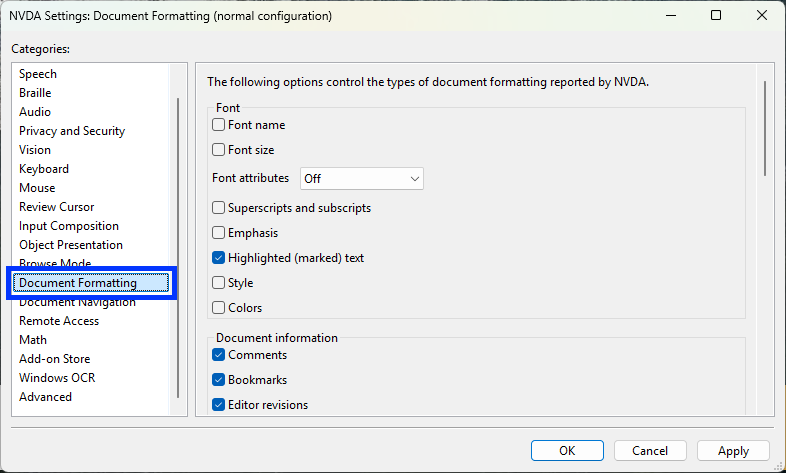
Cheat sheet
Everyday keys
| Task | Keys |
|---|---|
| Start NVDA | Ctrl+Alt+N |
| Quit NVDA | NVDA+Q, then Enter |
| Pause or resume speech | Shift |
| Stop the current announcement | Ctrl |
| Read the current line | NVDA+↑ |
| Read from the current position | NVDA+↓ |
| Next or previous heading | H / Shift+H |
| Next or previous landmark | D / Shift+D |
| Open the Elements List | NVDA+F7 |
| Switch Browse and Focus Mode | NVDA+Space |
| Input help on or off | NVDA+1 |
Web testing checklist
| Scenario | Expected outcome |
|---|---|
| Skip link | The first Tab press announces the skip link, like "Skip to main content, link" |
| ARIA live regions | Trigger a toast or status message NVDA reads the update without moving focus |
| Labeled fields | Tab to an input announces its accessible name, role, and state |
| Heading hierarchy | Pressing H walks <h1>–<h6> in a logical order |
Troubleshooting and team tips
-
NVDA swallows a key you need? Press NVDA**+F2**, then the key, to pass it straight to the application
-
Lost in Browse Mode? Press Ctrl+R to refresh the page and reset the virtual cursor
-
Speech too fast or slow? Use the synth settings ring: NVDA+Ctrl+←/→ selects a setting (like Rate), and NVDA+Ctrl+↑/↓ changes it
-
Custom widgets unlabeled? Add a role and
aria-labeloraria-labelledby, and confirm the widget is focusable (tabindex="0")
Learn More
-
Getting started with NVDA: The A11Y Project
-
VoiceOver on Mac – A Practical Guide for Beginners: the companion guide for Mac users