Identifying Image Types for Writing Alt Text
Why image type matters
Classification comes before writing
Writing effective alt text is not only about describing what an image contains. It starts with understanding why the image is there. Each image type calls for a different accessibility treatment: informative images need a clear description, decorative images should be skipped by assistive technology, and functional images should reflect their purpose.
The cost of misclassification
Misclassifying an image can create an incomplete, redundant, or misleading experience for people who rely on screen readers or other assistive technology. A decorative image with wordy alt text adds noise. An informative image with empty alt text hides content.
Context determines image type
The same image can be informative in one setting and decorative in another. A photo of a person might be informative in a news article but purely decorative on a team page that already states the person's name and role. Always evaluate an image by how it functions in its specific context.
Informative images
What they are
Informative images convey essential information that the adjacent text does not already communicate. They are critical to understanding the content's purpose, message, or data.
How to identify them
Ask these questions about the image:
-
Does it add new information?
-
Is it used to teach, explain, or provide a visual example?
-
Would a user miss important context or learning if it were removed?
Common use cases
-
A photo of a public figure or event that adds necessary context to a news article
-
An illustration of a product feature that the surrounding text does not describe
-
Photos in news articles that convey visual context
Cues to look for
-
The surrounding paragraph describes or refers to the image.
-
A chart is labeled with data points that are not mentioned elsewhere.
Example
A photo of a collapsed bridge in an article about infrastructure damage adds essential visual context. Its alt text reads, "Collapsed section of I-95 in Philadelphia following a tanker fire."

Functional images
What they are
Functional images act as interactive elements in the interface. They typically work as links, buttons, or controls.
How to identify them
Ask these questions about the image:
-
Does it do something when selected?
-
Is it part of a navigation element, a call to action, or a user interface control?
Common use cases
-
Icons for "Search," "Close," or "Menu"
-
Logos that link to the homepage
-
Image-based buttons
Cues to look for
-
The image changes visually on hover or focus.
-
The cursor changes to a pointer.
-
The code includes
href,onclick, orrole="button"attributes.
Example
A magnifying glass icon that opens a search field is functional. Its alt text should describe its action "Search" rather than its appearance.
A single page often mixes image types. In the sample below, the magnifying glass icon and the three labeled icon links are functional, while the illustration of the support agent is decorative.

Decorative images
What they are
Decorative images serve only aesthetic purposes or visual embellishment. They do not convey meaningful content or support user tasks.
How to identify them
Ask these questions about the image:
-
Would removing it change the meaning or function of the page?
-
Is it purely stylistic, like a background flourish or a visual separator?
Common use cases
-
Background images
-
Icons used for visual flair, not function
-
Spacers or borders
Cues to look for
-
The content does not refer to the image.
-
The image repeats across sections or pages.
-
It is often implemented with CSS (
background-image) or usesrole="presentation".
Example
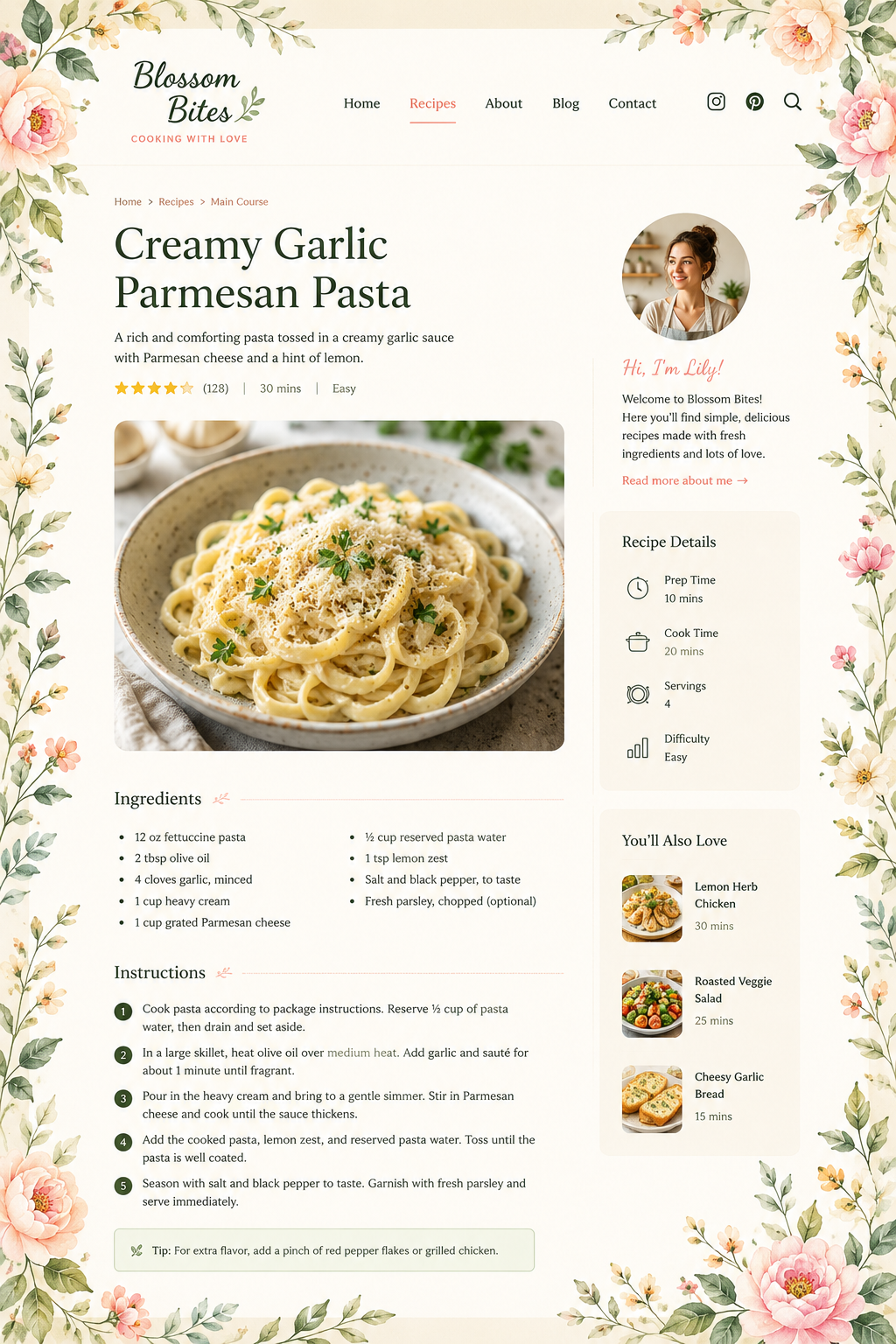
A floral border in the background of a recipe page adds no content. It is safe to mark as decorative.
Complex images
What they are
Complex images present detailed data or multiple elements that require longer explanations. They often combine text, visuals, and spatial relationships.
How to identify them
Ask these questions about the image:
-
Does it present detailed information that would take time to explain in words?
-
Does it depict relationships, processes, or hierarchies?
-
Would someone need a more in-depth explanation to understand the full meaning?
Common use cases
-
Infographics
-
Scientific charts
-
Maps with multiple data points
Cues to look for
-
The image includes legends, axes, or layered labels.
-
A detailed caption or full-text description may accompany it elsewhere.
Example
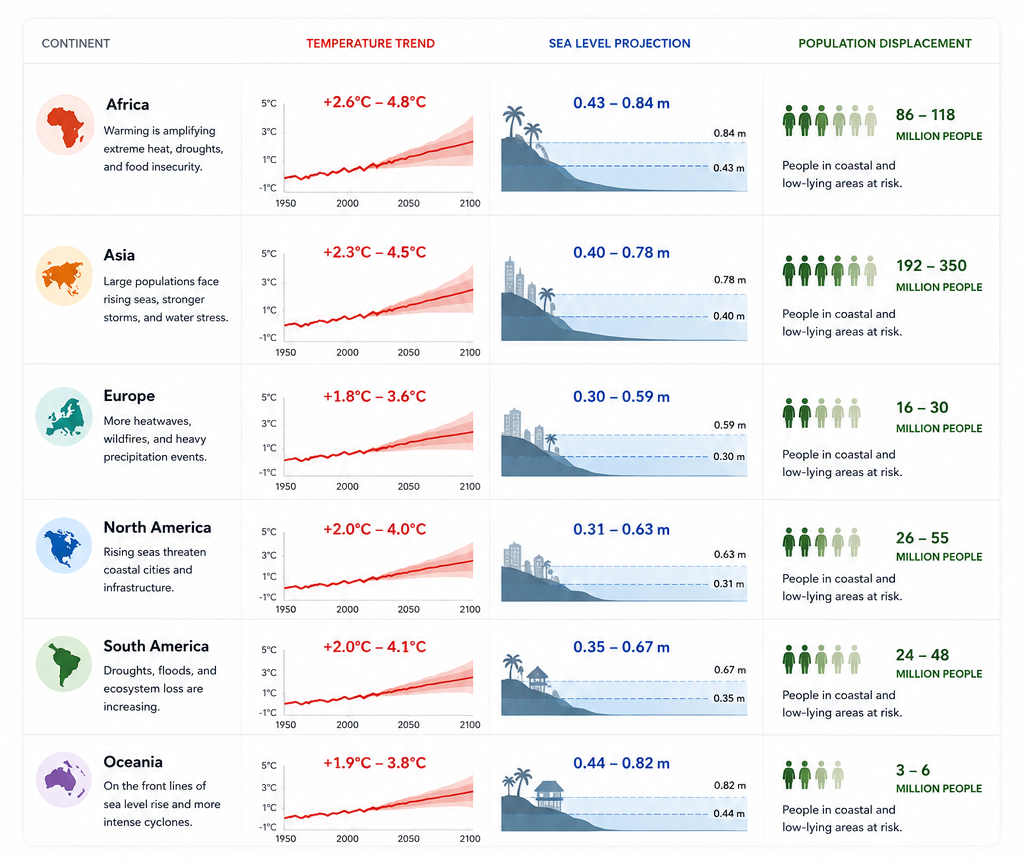
An infographic depicts the effects of climate change by continent temperature trends, sea level projections, and population displacement figures. A short alt text should refer users to a more detailed explanation within the content.
One image, multiple contexts
The same photo, three classifications
Consider a photo of a delivery truck on a city street. Its type depends entirely on how the page uses it:
-
Informative—in a blog post about eco-friendly transportation, the image supports a paragraph about electric delivery fleets. The body text references it with detail about emission standards.
-
Decorative—as a banner on a logistics company homepage, it adds atmosphere but is not referenced or essential. It exists for visual branding.
-
Functional—as a selectable element leading to a case study on last-mile delivery, the image acts as a call to action. It sits inside a link or button.
Tips for accurate identification
Practical checks before you classify
-
Consider the user experience without the image. If it were removed or not visible, would that affect a user's understanding or ability to complete a task?
-
Consult the design and content teams. Image intent is not always obvious from code alone.
-
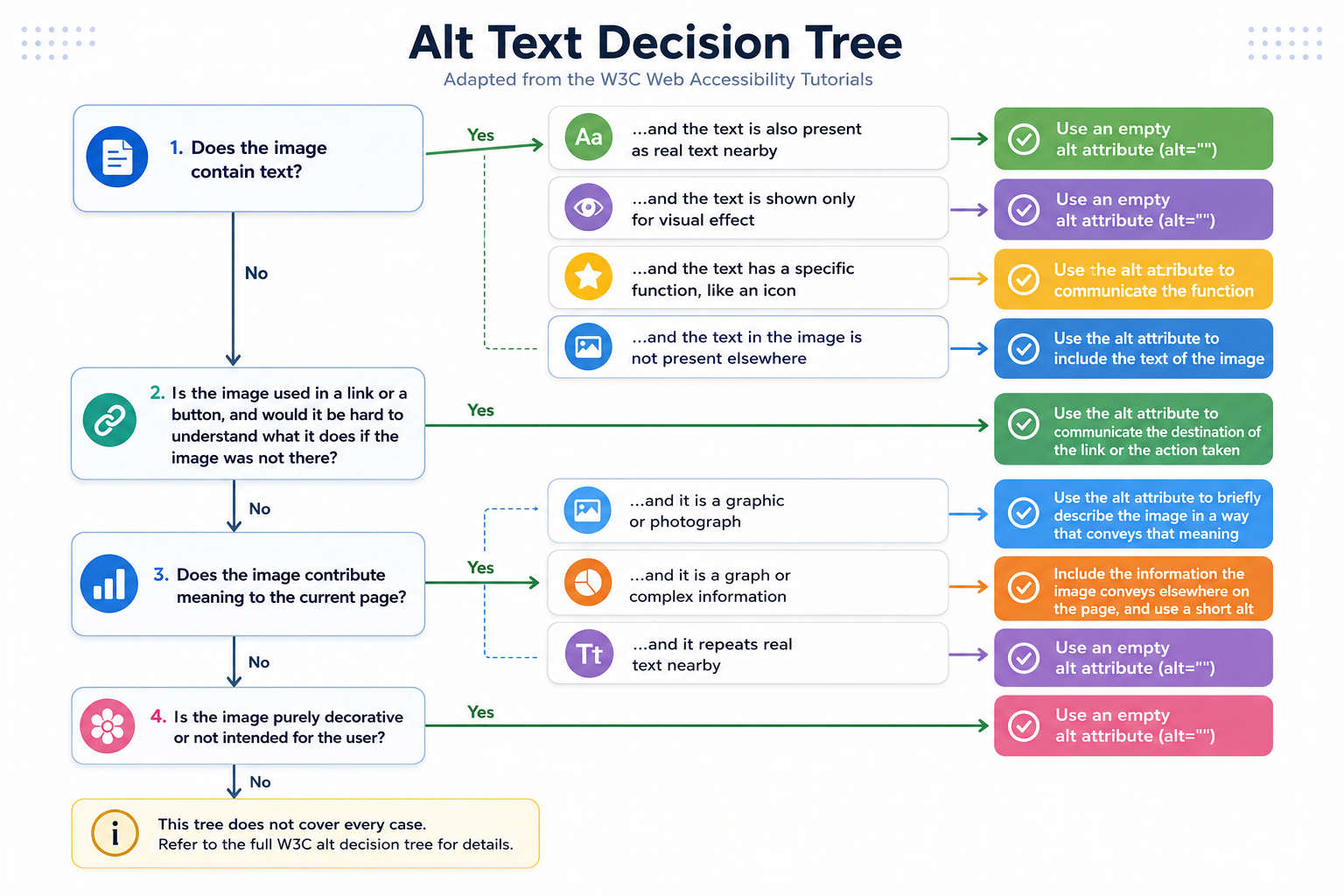
Use the W3C alt decision tree as a supplementary tool for classification.
The decision tree below is adapted from the W3C alt decision tree.
Classify early
Identifying image types early in the content or development process helps teams apply the right accessibility treatment from the start. This supports inclusive design and improves the experience for all users.
For guidance on writing the alt text itself once you have classified an image, refer to Writing Effective Alt Text.