TalkBack on Android
This guide is for developers, product managers, and auditors who don't work with assistive technology (AT) day to day. It walks you through TalkBack, the screen reader for Android phones and tablets, so you can confirm accessibility issues in your own apps.
Note: The screenshots in this guide were taken with TalkBack 16.0. On other TalkBack versions and devices, some screens may look different, and some settings may be in different locations.
Why this guide matters
Many accessibility issues in mobile apps can only be confirmed by using the app the way a screen reader user does. TalkBack is available on almost every Android device, so you usually have everything required. Ten minutes with TalkBack is often enough to confirm or rule out an issue that automated testing flagged.
TalkBack in a nutshell
TalkBack reads the screen aloud and lets you operate the whole device with touch gestures. It doesn't read the pixels, it reads the accessibility tree: the elements your app exposes, with their accessible names, roles (such as button or heading), and states. This is why a button that looks fine on screen can still be announced as just “button.”
When TalkBack is on, the usual touch gestures change:
| Layer | What it controls | Sample gestures |
|---|---|---|
| TalkBack focus | Which element TalkBack is on | Swipe right / left with one finger: move to the next or previous element |
| Activation | Operating the element in focus | Double tap with one finger: activate the focused element |
| Reading controls | How swiping up and down moves, for example by heading or by control | Swipe down or up with three fingers: choose a reading control |
Note: The exact menus and gestures depend on the device manufacturer, the Android version, and the TalkBack version. Multi-finger gestures are available on TalkBack 9.1 and later, on most current devices. This guide follows Google's TalkBack; some menus may look different on your device.
Before you start: staying in control
The first time TalkBack starts talking, it can feel overwhelming, and the phone no longer responds to touch the way you expect. That's normal. Set up an easy way out before you turn TalkBack on:
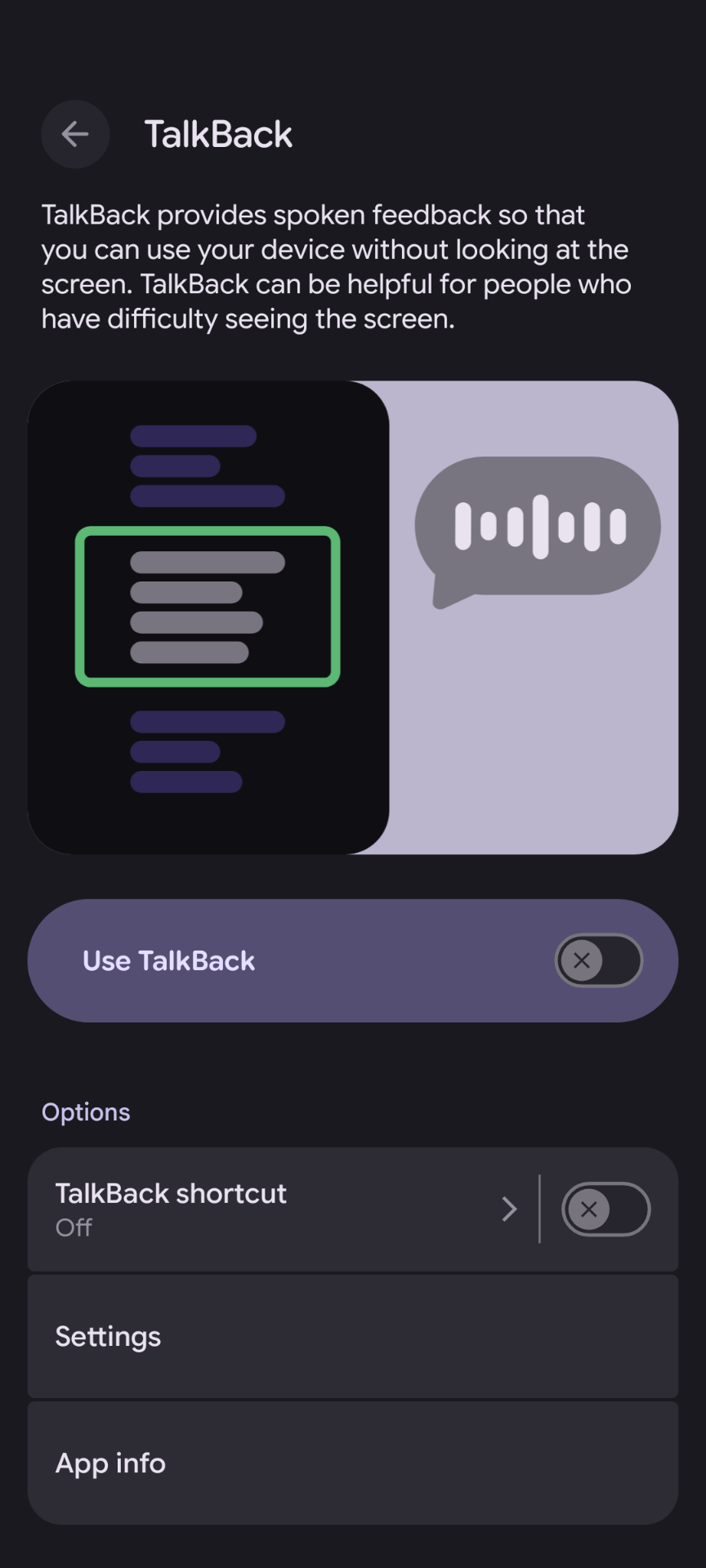
- Set up the TalkBack shortcut – Go to Settings › Accessibility › TalkBack › TalkBack shortcut, and turn it on. On most devices, you can then press and hold both volume keys for a few seconds to turn TalkBack on or off at any time.
- Pause speech – Tap the screen with two fingers to pause TalkBack. Tap with two fingers again to resume.
- Open the TalkBack menu – Tap the screen with three fingers. The menu gives you quick access to TalkBack settings and other actions.
Setup and first-run checklist
-
Make sure TalkBack is installed and up to date – TalkBack comes with most devices, but depending on the manufacturer it may be missing or outdated. For consistent results, install or update Android Accessibility Suite from Google Play, which includes TalkBack.
-
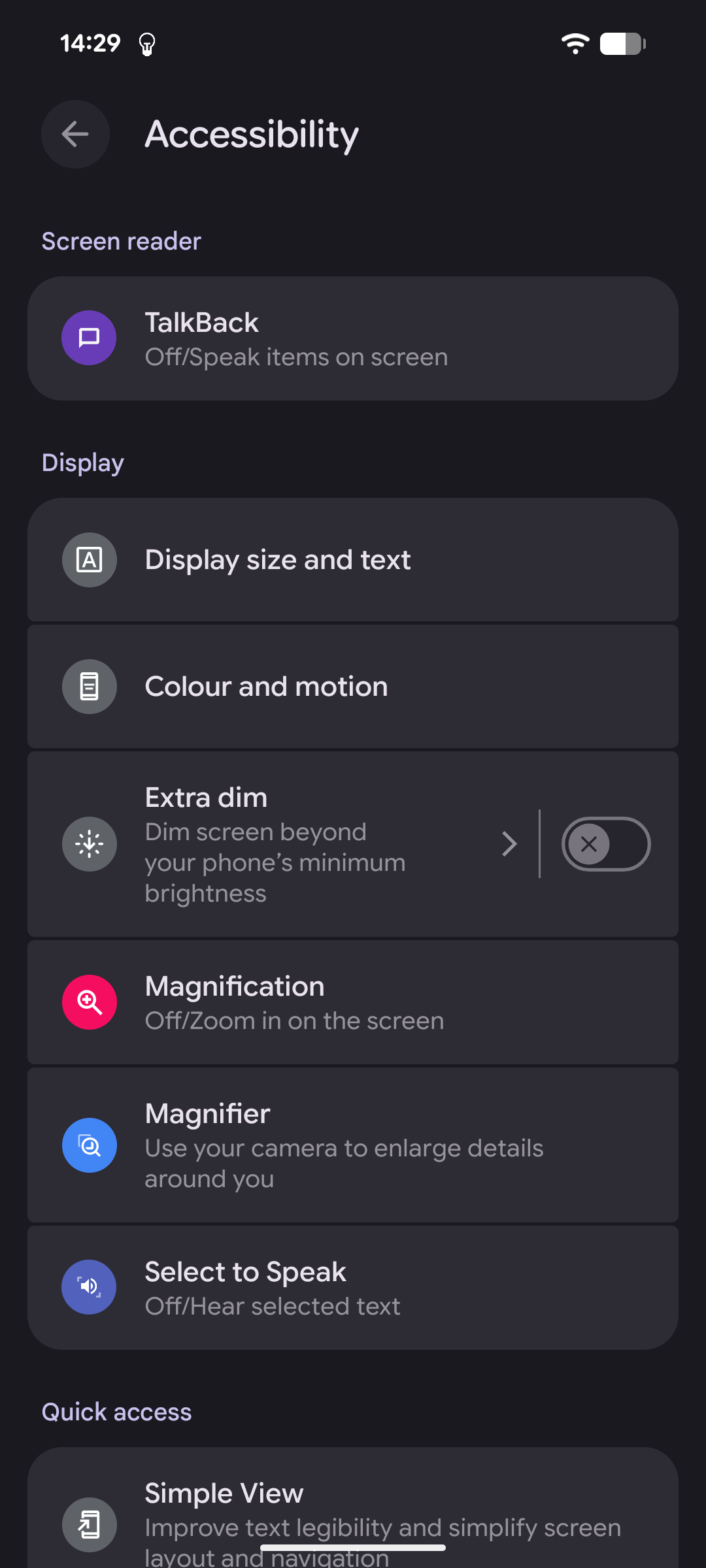
Turn on TalkBack – Go to Settings › Accessibility › TalkBack, and turn on Use TalkBack. On some devices, TalkBack is under Accessibility › Installed apps or Installed services. You can also use the TalkBack shortcut, or say “Hey Google, turn on TalkBack.”
-
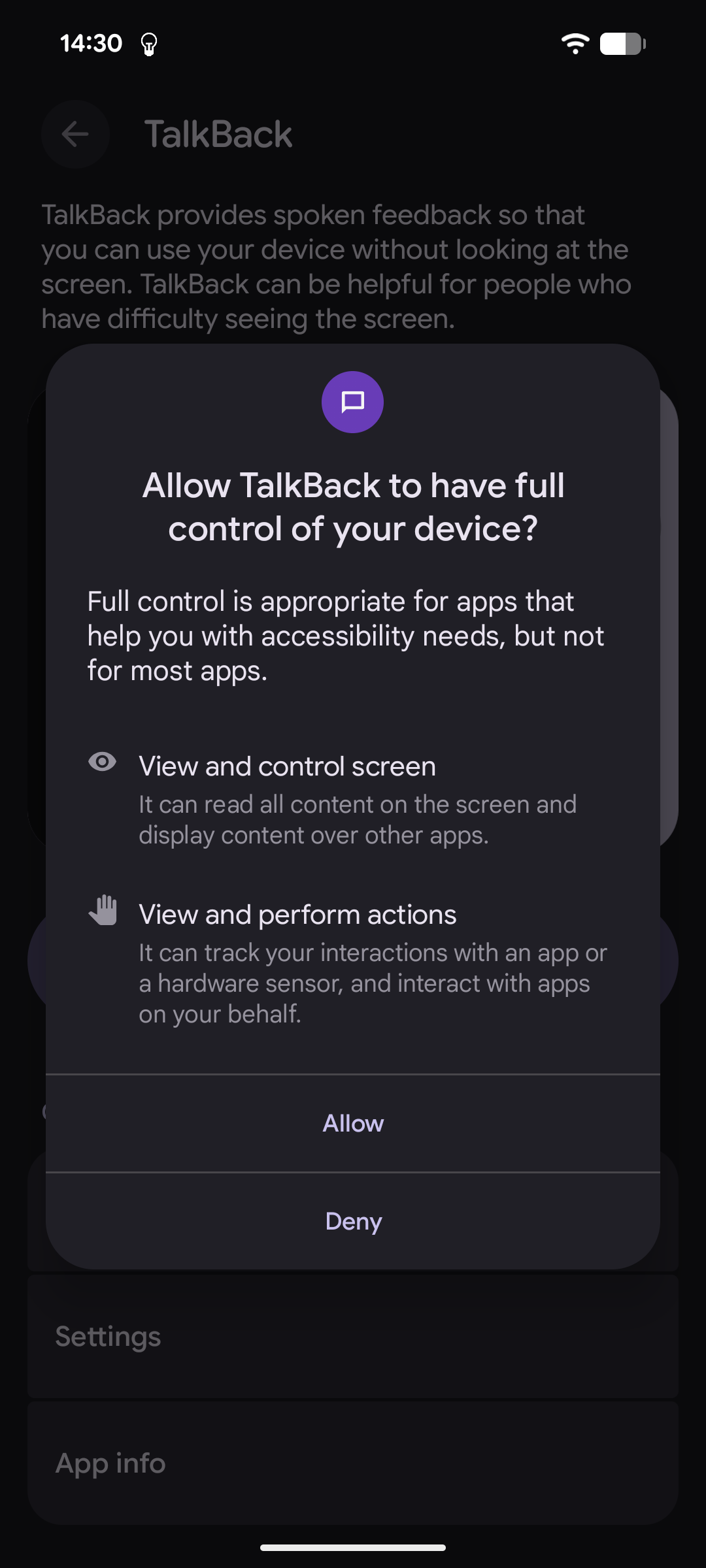
Allow TalkBack's permissions – The first time you turn it on, TalkBack asks for permission to have full control of the device. TalkBack can't work without it, so allow it.
-
Run the tutorial – The first time you turn on TalkBack, its tutorial opens automatically. To run it again, open the TalkBack menu with a three-finger tap, then go to TalkBack settings › Tutorial and help › Tutorial. We recommend it for every first-time user.
-
Practice the gestures – Tap the screen with four fingers to open the gesture practice area. You can try any gesture and hear what it does, without changing anything on the device.
Core concepts
TalkBack focus
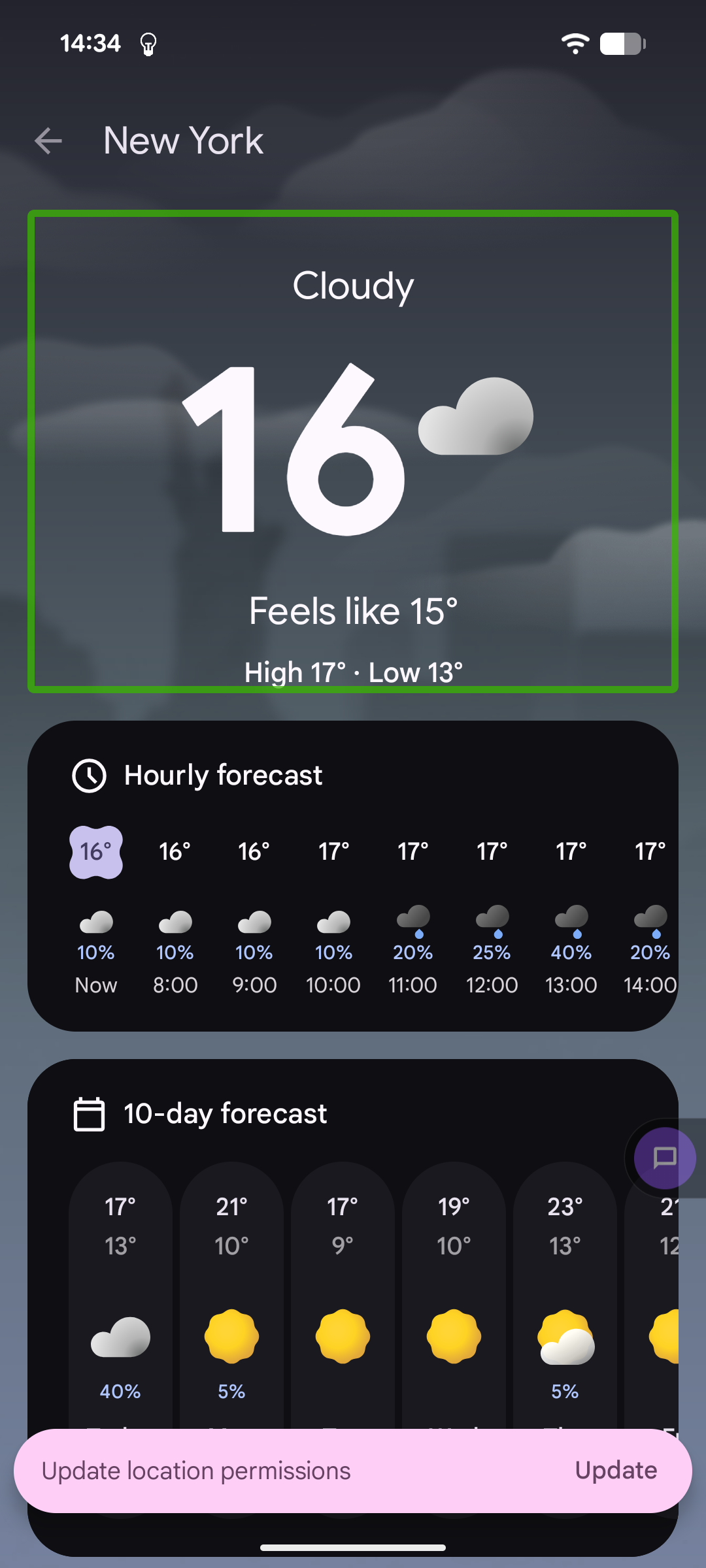
The TalkBack focus is the box around the element that is currently selected and being read. Swipe right with one finger to move it to the next element, and swipe left to move it back. You can also touch the screen, or drag a finger across it, to move the focus to whatever is under your finger. This is called explore by touch.
Selection vs. activation
Moving the focus to an element only selects it, it doesn't activate it. To activate the focused element, such as pressing a button or opening a link, double-tap anywhere on the screen. To long-press it, double-tap and hold.
Reading controls
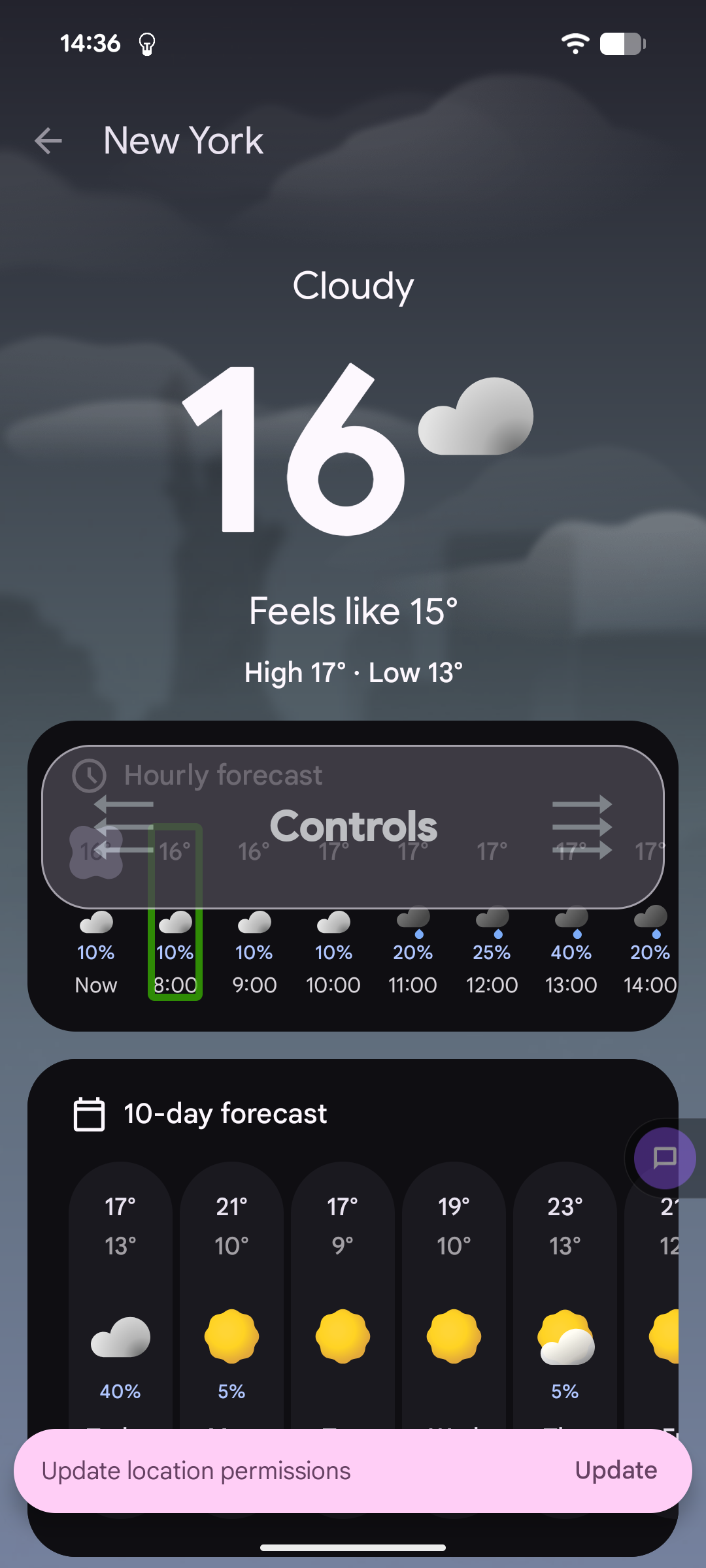
Reading controls change what happens when you swipe up or down with one finger. Swipe down or up with three fingers to choose a reading control, such as Headings, Controls, Links, Lines, Words, Characters, or Speech rate. On devices without multi-finger gestures, swipe up then down, or down then up, with one finger. Then swipe down with one finger to move to the next item of that type, or swipe up to move to the previous one.
Scrolling and system navigation
With TalkBack on, swiping with one finger moves the focus instead of scrolling. To scroll, swipe with two fingers. When the device uses gesture navigation, system gestures also use two fingers instead of one: for example, swipe up from the bottom with two fingers to go home, or swipe from the left or right edge with two fingers to go back.
Your first walkthrough
How to read the table
The announcement column is abridged, the exact wording varies by device, TalkBack version, and the TalkBack settings you choose.
Basic app test
| Step | Gesture | What to check |
|---|---|---|
| Open the app you want to test | Tap its icon, before turning TalkBack on | The app's first screen is displayed |
| Turn on TalkBack | Press and hold both volume keys | “TalkBack on”, then the focused element |
| Move through the screen | Swipe right with one finger, repeatedly | Every interactive element and every piece of essential content is announced, in a logical order |
| Check each control | Listen to each announcement | Each interactive element has a clear accessible name and a type, such as “button”, and announces its state, such as “checked” or “selected” |
| Check the images | Move to each meaningful image | Each image has a text alternative that conveys its purpose |
| Activate a control | Double-tap anywhere on the screen | The control performs its action |
| Go back | Swipe from the left or right edge with two fingers | The previous screen |
| Turn off TalkBack | Press and hold both volume keys | “TalkBack off” |
Settings worth changing
TalkBack has many settings. To open them, go to Settings › Accessibility › TalkBack › Settings, or open the TalkBack menu with a three-finger tap. These matter most for testing:
| Setting | Why it matters | What to change |
|---|---|---|
| Text-to-speech output | Default speech can be too fast for beginners, and engines differ between manufacturers | Set the preferred engine to Google's speech engine (for example, Speech Recognition and Synthesis from Google), and slow down the speech rate |
| Customize gestures | Lists every gesture and what it does on your device | Use it as a reference, and to reassign gestures if needed |
| Advanced settings › Element description order | Controls the order in which TalkBack reads an element's name, type, and state | Choose an order that makes it easy to hear the type and state of each element |
| Advanced settings › Developer settings › Display speech output | Reading announcements is easier than hearing them | Turn it on to show what TalkBack speaks on screen |
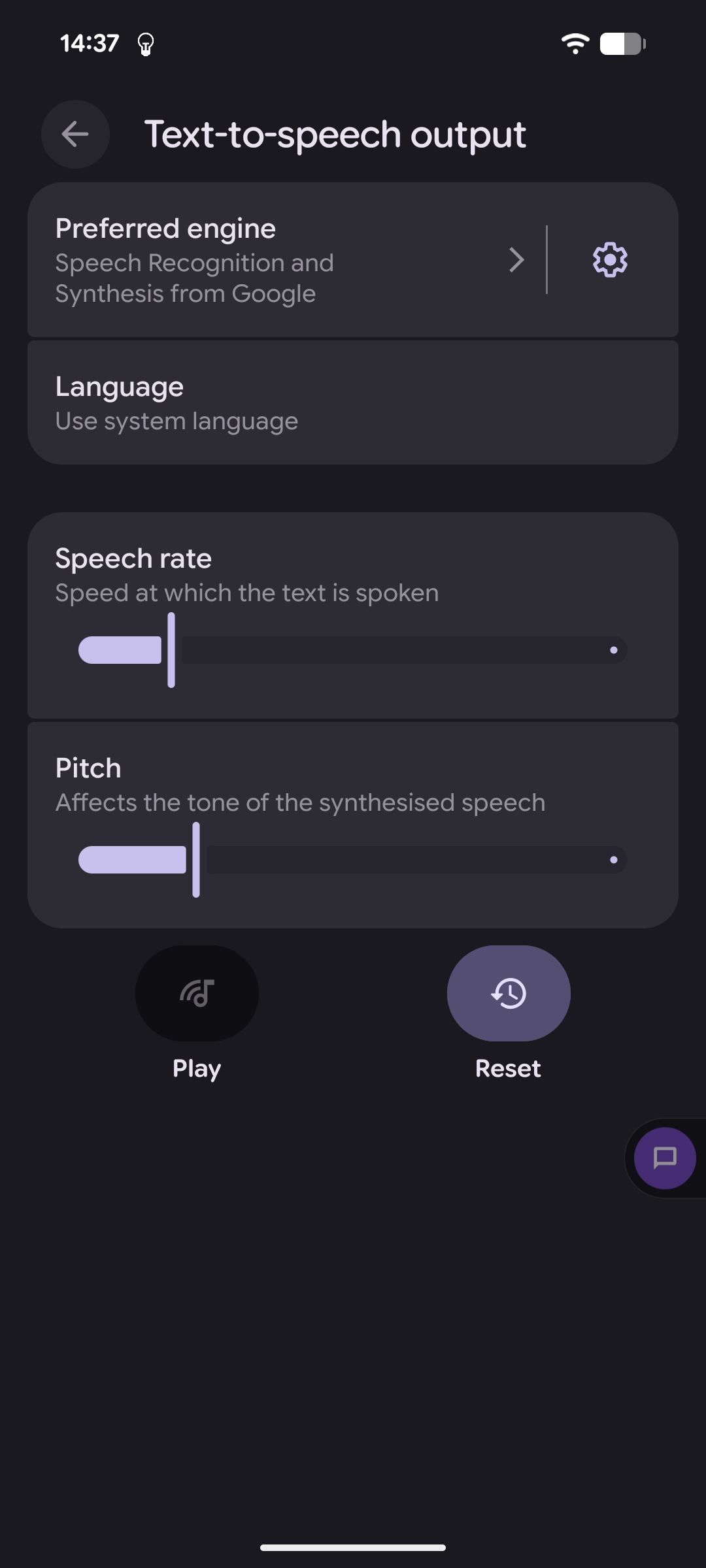
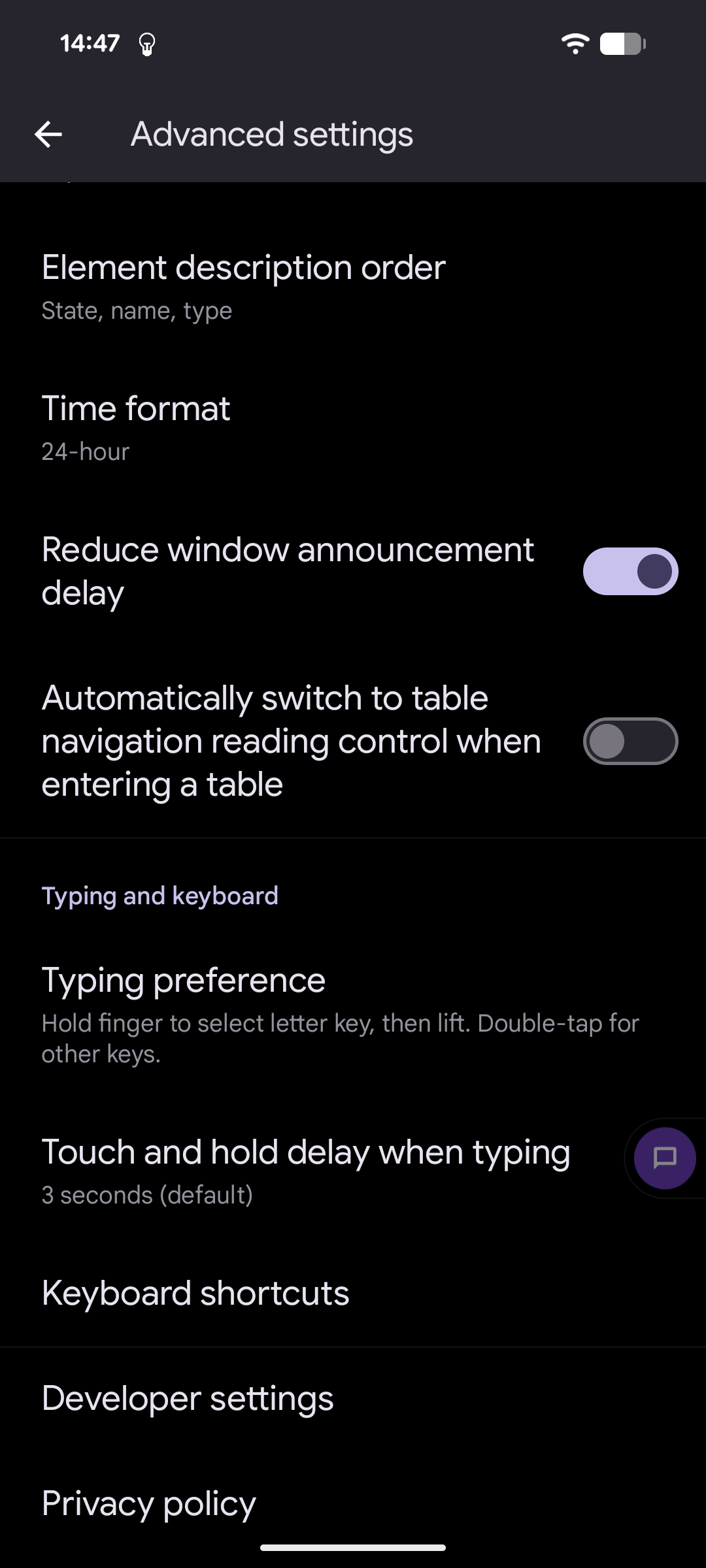
Note: Setting the element description order makes testing easier. When TalkBack reads an element's properties in an unexpected order, or leaves one out, it can be a sign that the element's name, role, or state is not set correctly.
Cheat sheet
Everyday gestures
| Task | Gesture |
|---|---|
| Turn TalkBack on or off | Press and hold both volume keys (with the TalkBack shortcut on) |
| Pause or resume speech | Two-finger tap |
| Move to the next or previous element | One-finger swipe right / left |
| Focus the element under your finger | Touch or drag one finger on the screen |
| Activate the focused element | One-finger double tap |
| Long-press the focused element | One-finger double tap and hold |
| Choose a reading control | Three-finger swipe down / up |
| Move by the reading control | One-finger swipe down / up |
| Scroll | Two-finger swipe up, down, left, or right |
| Read from the next element | Two-finger triple tap |
| Open the TalkBack menu | Three-finger tap |
| Practice gestures | Four-finger tap |
| Go back | Two-finger swipe from the left or right edge (with gesture navigation) |
| Go home | Two-finger swipe up from the bottom (with gesture navigation) |
App testing checklist
| Scenario | Expected outcome |
|---|---|
| Swiping through a screen | TalkBack reaches every interactive element and all essential content, in a logical order |
| Controls | Each control is announced with a clear name, its type, and its state |
| Images | Meaningful images have a text alternative, and decorative images are skipped |
| Headings | Choosing Headings in the reading controls and swiping down moves between the screen's section headings |
| Dialogs and new screens | Opening a dialog or a new screen moves the TalkBack focus into it |
Troubleshooting and team tips
- The phone doesn't respond to your taps? TalkBack is on, so one tap only selects. Double-tap to activate, or use the TalkBack shortcut to turn it off.
- A gesture does nothing? Your device may not support multi-finger gestures. Three-finger tap: if the TalkBack menu doesn't open, use the one-finger alternatives, such as swiping down then right to open the menu.
- TalkBack says “unlabeled”? The element has no accessible name. Check its
contentDescriptionor its text. - A control is announced without a type, such as “button”? It is missing the correct role.
- TalkBack skips an element? It may be hidden from accessibility, for example with
importantForAccessibility="no".
Learn More
- Get started on Android with TalkBack, Android Accessibility Help
- Turn on TalkBack, Android Accessibility Help
- Use TalkBack gestures, Android Accessibility Help