Voice Control on iOS
This guide is for developers, product managers, and auditors who don't work with assistive technology (AT) day to day. It walks you through Voice Control, the voice input feature built into every iPhone and iPad, so you can confirm accessibility issues in your own apps.
Note: The screenshots in this guide were taken with Voice Control on iOS 26.6. On other iOS versions, some screens may look different, and some settings may be in different locations.
Why this guide matters
People who can't use touch, or for whom touch is tiring or painful, can operate their whole device by speaking. Voice Control lets them tap, swipe, and type with spoken commands, and they refer to on-screen elements by their names. Many accessibility issues, such as a button whose accessible name doesn't match its visible label, can only be confirmed by trying to use the app this way. Ten minutes with Voice Control is often enough to confirm or rule out an issue that automated testing flagged.
Voice Control in a nutshell
Voice Control listens for commands and acts on the element you name. It doesn't read the pixels, it uses the accessibility tree: the elements your app exposes and their accessible names. When you say “Tap Send,” Voice Control looks for an element whose accessible name matches “Send.” This is why a button can be clearly labeled on screen and still not respond to its visible label.
When you don't know an element's name, Voice Control can label everything on the screen for you:
| Layer | What it shows | Sample commands |
|---|---|---|
| Names | The accessible name of each interactive element | “Show names”, then “Tap [name]” |
| Numbers | A number on each interactive element | “Show numbers”, then say the number, or “Tap [number]” |
| Grid | A numbered grid over the whole screen, for areas that have no element | “Show grid”, then “Tap [number]” |
Before you start: staying in control
The first time Voice Control is on, it may react to things you say in conversation, and type them into text fields. That's normal. Set up an easy way out before you turn Voice Control on:
- Pause listening – Say “Stop listening” to pause Voice Control, for example when you talk to someone. Say “Start listening” to resume.
- Set up the Accessibility Shortcut – Go to Settings › Accessibility › Accessibility Shortcut, and select Voice Control. From then on, triple-click the side button (or the Home button, on iPhones that have one) to turn Voice Control on or off at any time. You can still use touch while Voice Control is on.
- See what you can say – Say “Show commands” to see a list of the commands available on the current screen.
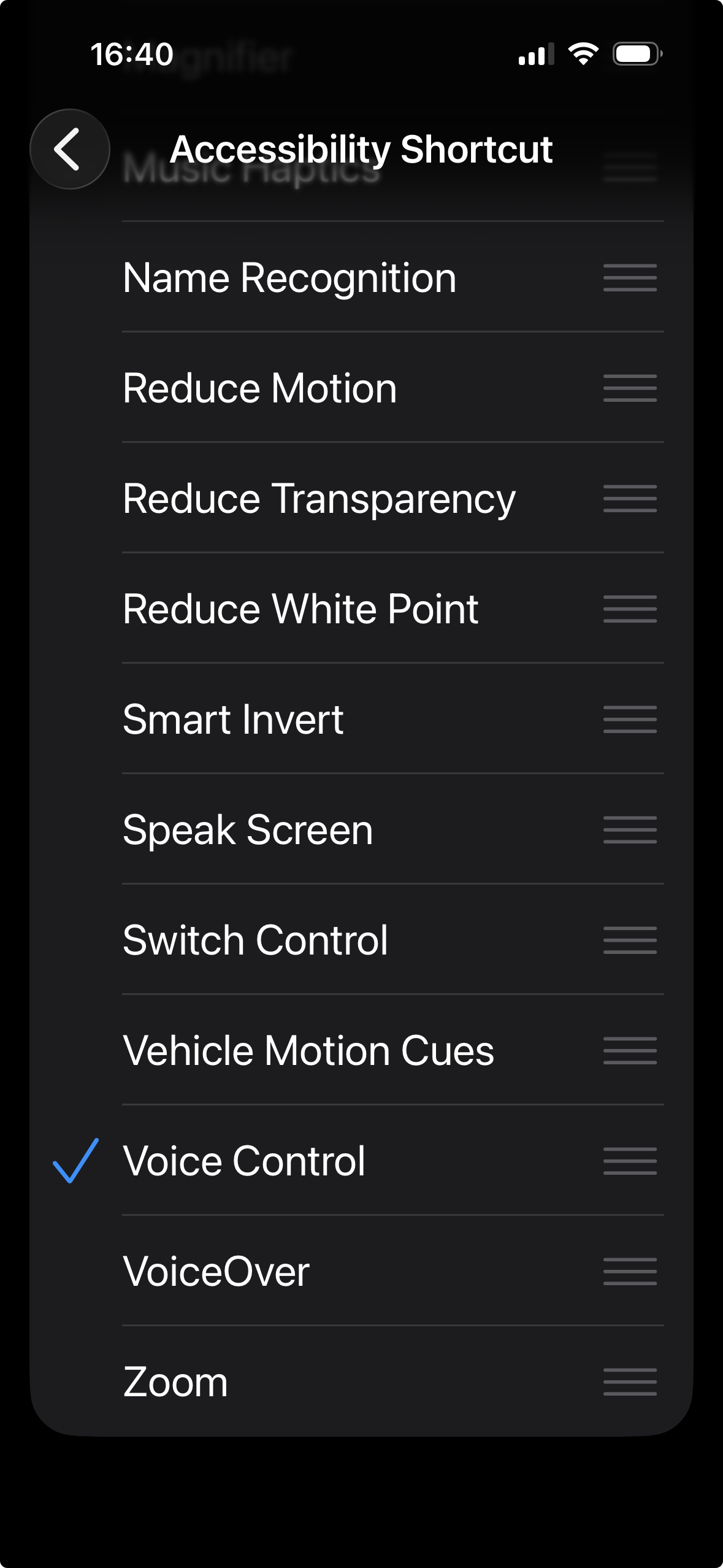
Note: Voice Control replaces the standard iOS dictation while it is on. Any words you say that aren't commands are typed into the selected text field.
Setup and first-run checklist
-
Connect to Wi-Fi – The first time you turn on Voice Control, the iPhone downloads its files from Apple. After that, Voice Control works without an internet connection.
-
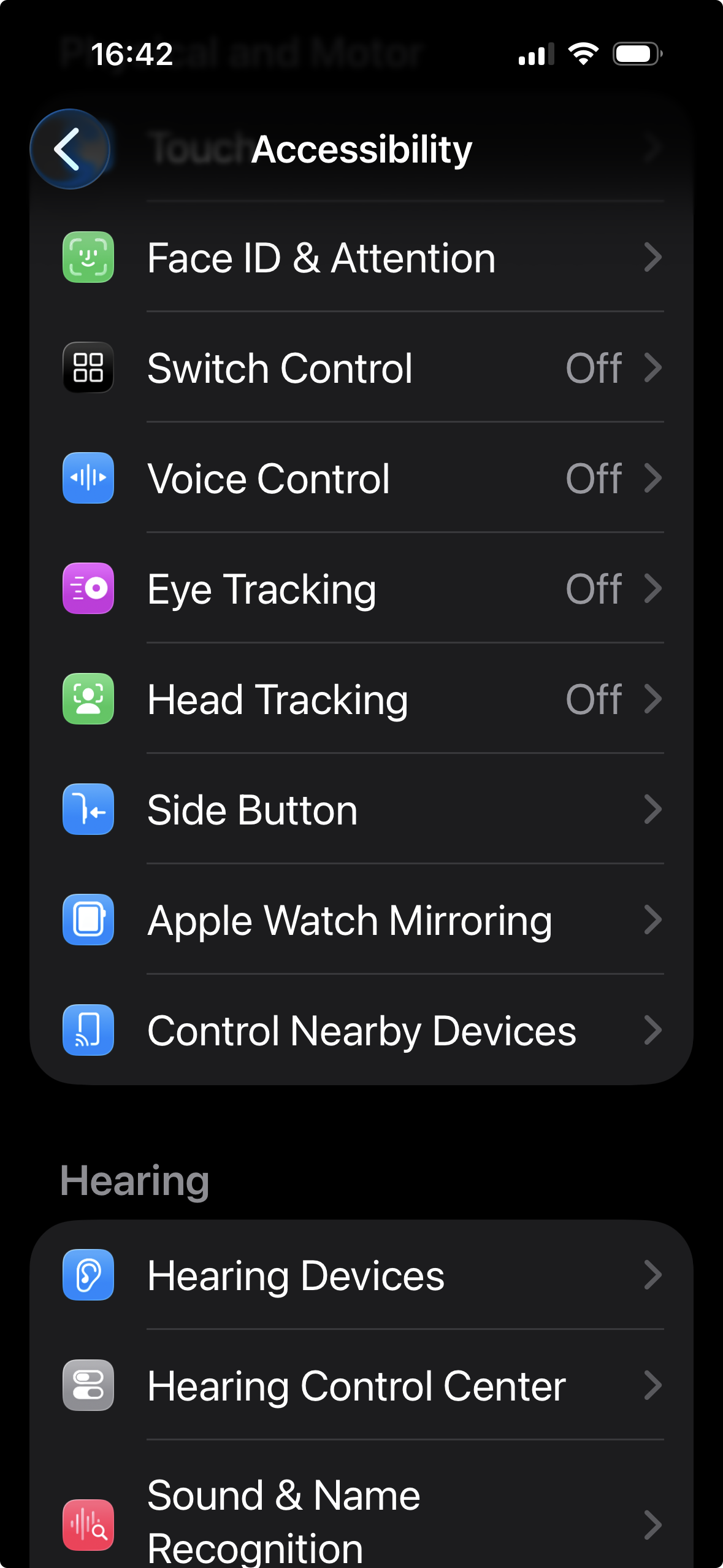
Set up Voice Control – Go to Settings › Accessibility › Voice Control, tap Set Up Voice Control, then tap Continue to start the download. When the download is complete, a Voice Control icon appears in the status bar to show that it is on.
-
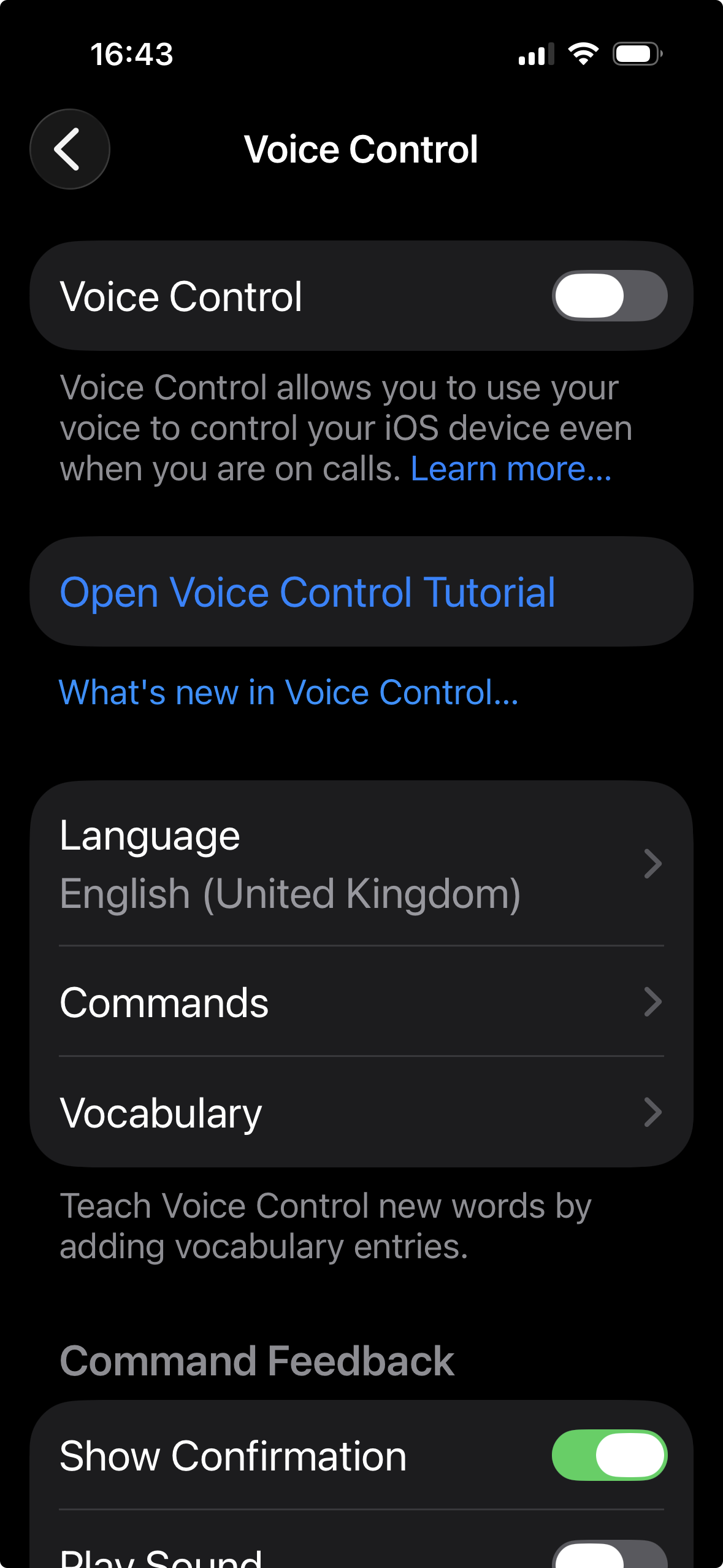
Run the tutorial – On the Voice Control settings screen, tap Open Voice Control Tutorial. It teaches the essential commands in a few minutes. We recommend it for every first-time user.
-
Check the language – Voice Control recognizes commands in the language set in Voice Control › Language. Test in the language your app's labels are written in.
Core concepts
Speaking to elements by name
The most common command is “Tap” followed by the name of an element, for example “Tap Settings.” For many elements you can also just say their name. Voice Control activates the element whose accessible name matches what you said. If two elements have the same name, Voice Control shows a number on each of them, and you need to say “Tap” again, followed by the number of the element you want. This extra step is a sign that the elements may need unique names.
Show names
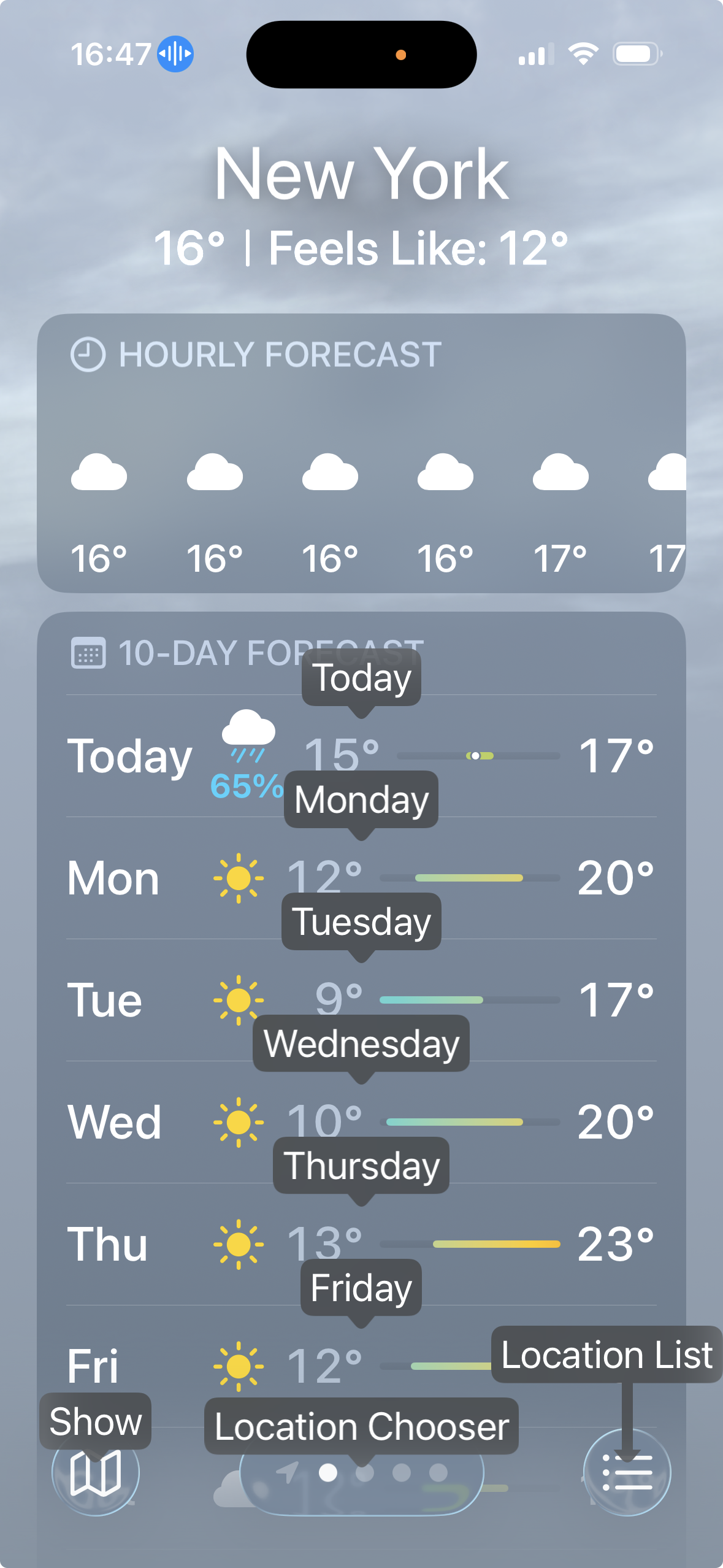
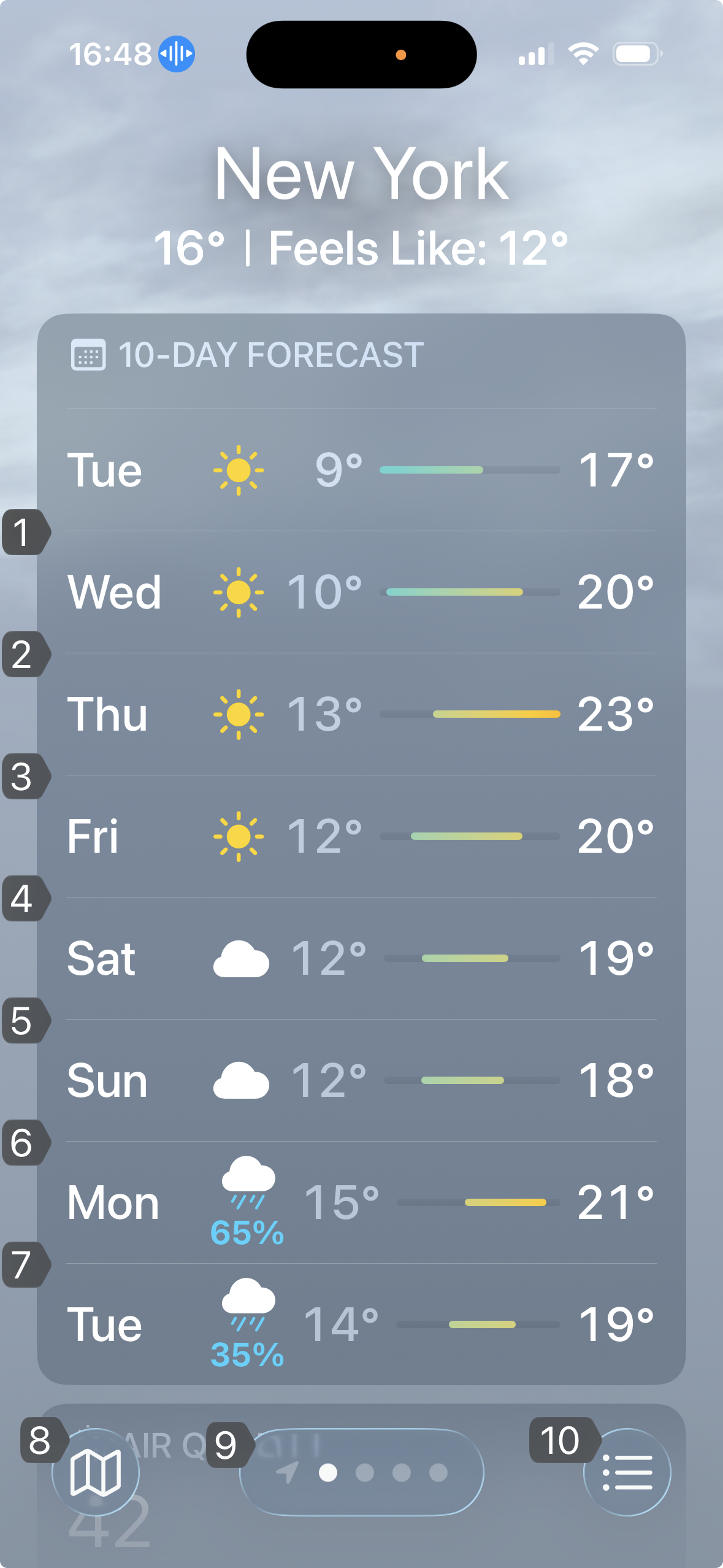
Say “Show names” to display the accessible name of each interactive element next to it. This is the fastest way to check whether an element's accessible name matches its visible label, or whether it has a name at all. Also look for names that are too vague to tell users what the element does: in the Weather app below, the map button is named just “Show,” so a voice user has to say “Tap Show” without knowing what it will show. Say “Hide names” to remove the labels.
Show numbers
Say “Show numbers” to display a number on each interactive element. Then say a number, or a command followed by a number, such as “Tap 3” or “Long press 3.” Numbers help when an element has no name, or when its name is hard to say. Say “Hide numbers” to remove them.
Show grid
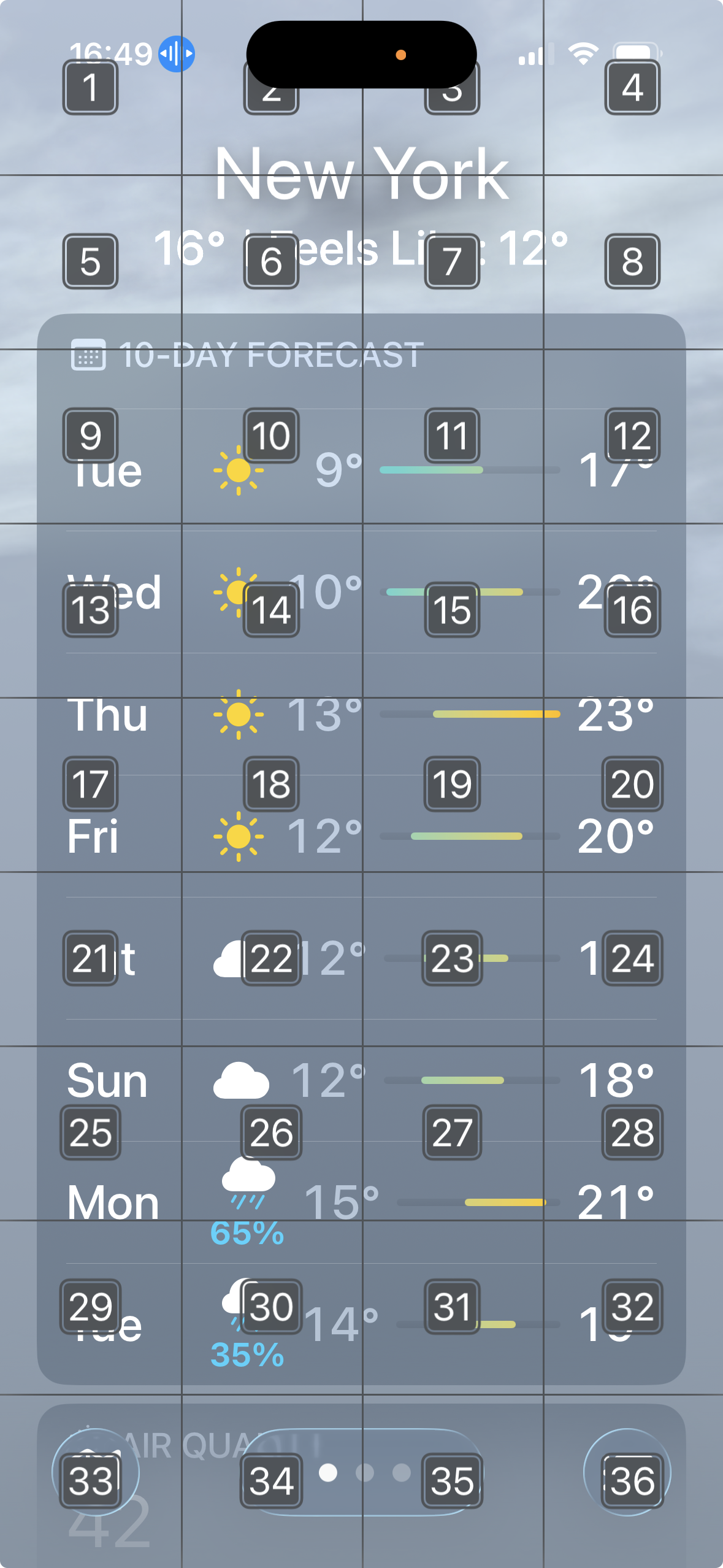
Say “Show grid” to place a numbered grid over the whole screen. Say a command followed by a grid number, such as “Tap 5,” to act on that area, or say a grid number on its own to show a more detailed grid inside it. Users fall back on the grid when an element doesn't appear in the names or numbers at all, which can be a sign that it isn't exposed to assistive technologies. Say “Hide grid” to remove it.
Dictating text
When a text field is selected, any words you say that aren't commands are typed into it. To enter a password, a web address, or another sequence that isn't made of words, say “Spelling mode” and spell it character by character. Say “Dictation mode” to go back to typing words. To stop Voice Control from typing anything while you try out commands, say “Command mode.”
Your first walkthrough
How to read the table
The command column shows what to say. The exact behavior and the on-screen feedback may vary by iOS version and by the Voice Control settings you choose.
Basic app test
| Step | Command | What to check |
|---|---|---|
| Open the app you want to test | Tap its icon, or say “Open [app name]” | The app's first screen is displayed |
| Turn on Voice Control | Triple-click the side button | The Voice Control icon appears in the status bar |
| Show the element names | “Show names” | Every interactive element shows a name |
| Compare names with labels | Look at each name | Each name contains the element's visible label, ideally at the start |
| Activate a control by its label | “Tap [visible label]” | The control performs its action |
| Find unnamed elements | “Show numbers” | Elements that show a number but no meaningful name have no accessible name |
| Fill in a text field | “Tap [field label]”, then say the text | The field is selected, and the text is typed into it |
| Scroll the screen | “Scroll down” / “Scroll up” | The content scrolls |
| Turn off Voice Control | Triple-click the side button | The Voice Control icon disappears from the status bar |
Settings worth changing
Voice Control's settings are in Settings › Accessibility › Voice Control. These matter most for testing:
| Setting | Why it matters | What to change |
|---|---|---|
| Show Confirmation | Shows which command Voice Control understood | Keep it on, to see whether a failure was a recognition problem or an app problem |
| Show Hints | Suggests commands as you work | Keep it on while you learn |
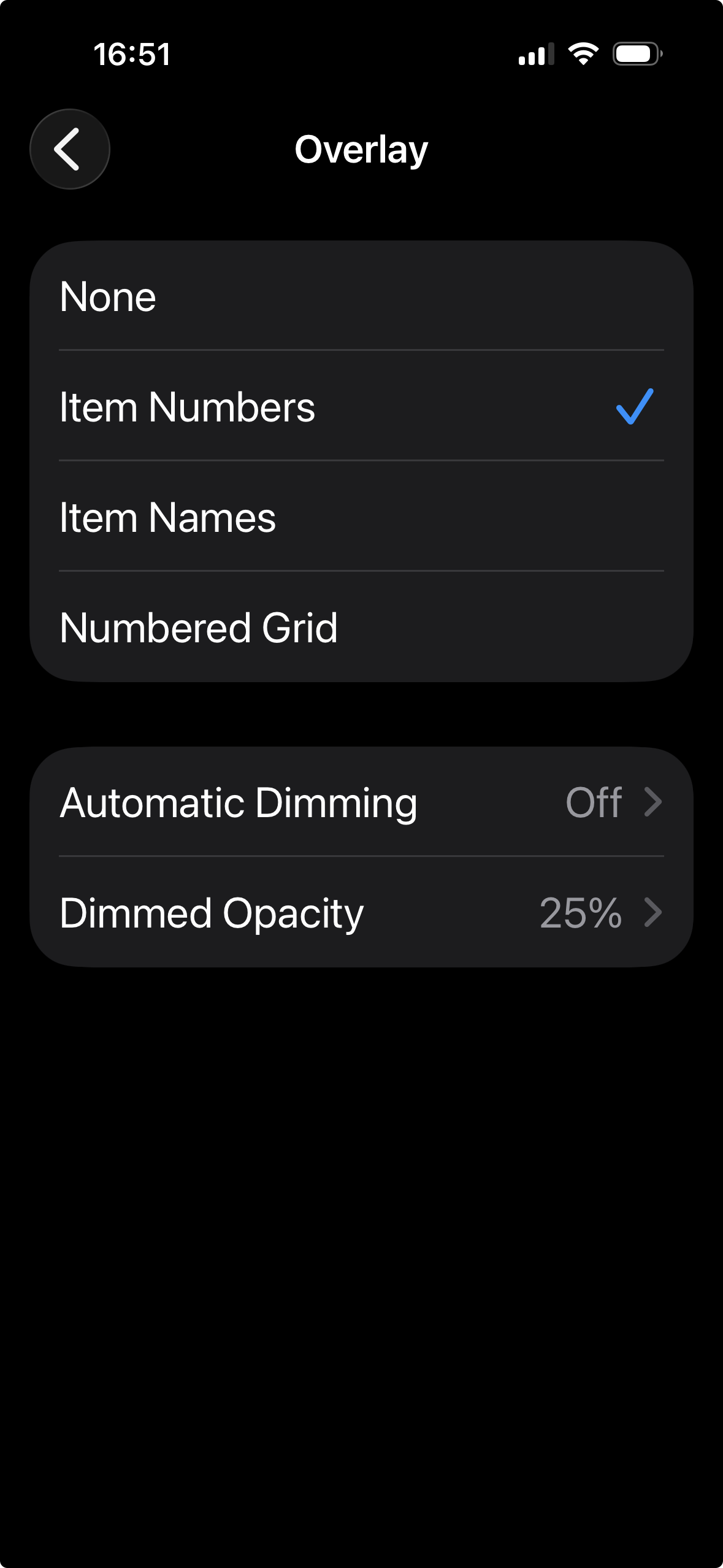
| Overlay | Shows names, numbers, or a grid all the time | Set it to Item Names to keep names visible while you test a screen |
| Commands | Lists every command, with examples | Use it as a reference, and to turn off commands that get in your way |
Note: On newer iOS versions with Apple Intelligence, Voice Control can also understand descriptions of elements in your own words, such as “Tap the blue button at the bottom.” When this option is available, turn it off while testing, so Voice Control only matches exact accessible names, as many users' devices do.
Cheat sheet
Everyday commands
| Task | Command |
|---|---|
| Turn Voice Control on or off | Triple-click the side button (with the Accessibility Shortcut set) |
| Pause or resume listening | “Stop listening” / “Start listening” |
| See available commands | “Show commands” |
| Activate an element | “Tap [name]” |
| Long-press an element | “Long press [name]” |
| Show or hide element names | “Show names” / “Hide names” |
| Show or hide element numbers | “Show numbers” / “Hide numbers” |
| Show or hide the grid | “Show grid” / “Hide grid” |
| Scroll | “Scroll down” / “Scroll up” |
| Go to the Home Screen | “Go home” |
| Open an app | “Open [app name]” |
| Spell text character by character | “Spelling mode” |
| Return to typing words | “Dictation mode” |
| Stop typing what you say | “Command mode” |
App testing checklist
| Scenario | Expected outcome |
|---|---|
| Show names | Every interactive element shows a name, and each name contains its visible label |
| Tap by label | Saying “Tap” followed by an element's visible label activates it |
| Duplicate names | Elements that do different things have different names |
| Icon-only buttons | Each one shows a meaningful name that is easy to say |
| Text fields | Saying a field's label selects it, and dictated text is typed into it |
Troubleshooting and team tips
- Voice Control doesn't respond to a visible label? The element's accessible name doesn't contain its visible label. Check its
accessibilityLabel. - An element shows no name, or only a number? It has no accessible name.
- An element doesn't appear in the names or numbers at all? It may not be exposed to accessibility, or it may not be recognized as interactive.
- Voice Control types what you say instead of acting on it? A text field is selected. Say “Command mode,” or move out of the field first.
- Commands aren't recognized? Speak at a steady pace, check the Voice Control language, and look at the confirmation at the top of the screen to see what Voice Control heard.
Learn More
- Use Voice Control to interact with iPhone, Apple Support