# Text Resizing (Mobile)
> In mobile apps, users must be able to increase text size up to 200 percent without loss of content or functionality.
Source: https://knowledge.evinced.com/mobile/mobile-validations/text-resizing
Support increasing text size up to 200 percent without loss of content or functionality.
Many people rely on larger text to read comfortably, and both Android and iOS let users change the default text size in their device settings. When an app sets fixed font sizes in code, or uses units that do not scale, the system setting does not apply, and the text stays small. Text must also not be cut off when it grows. When text is placed in a container with a fixed size, or limited to a single line, larger text may be clipped or truncated with an ellipsis, which is a loss of content. Let text containers grow, and allow text to wrap onto more lines.
## Pass Patterns
### Dynamic Fonts
#### Android
XML Views
The text size uses `sp` units, which scale with the user's font size setting.
```xml
```
#### iOS
**UIKit**
The label uses a text style and adjusts to the user's Dynamic Type setting.
```swift
let summaryLabel = UILabel()
summaryLabel.text = "Order summary"
summaryLabel.font = .preferredFont(forTextStyle: .body)
summaryLabel.adjustsFontForContentSizeCategory = true
```
**SwiftUI**
The text uses a text style, which adjusts to the user's Dynamic Type setting.
```swift
Text("Order summary")
.font(.body)
```
### Text Clipped
#### Android
XML Views
The text has no line limit, so it wraps onto more lines as it grows.
```xml
```
#### iOS
**UIKit**
The label has no line limit, so it wraps onto more lines as it grows.
```swift
let deliveryLabel = UILabel()
deliveryLabel.text = "Your order will arrive within three to five business days."
deliveryLabel.numberOfLines = 0
```
**SwiftUI**
The text has no line limit, so it wraps onto more lines as it grows.
```swift
Text("Your order will arrive within three to five business days.")
.lineLimit(nil)
.fixedSize(horizontal: false, vertical: true)
```
## Fail Patterns
### Dynamic Fonts
#### Android
XML Views
The text size uses `dp` units, which will not scale with the user's font size setting.
```xml
```
#### iOS
**UIKit**
The label uses a fixed font size, so it does not adjust to the user's Dynamic Type setting.
```swift
let summaryLabel = UILabel()
summaryLabel.text = "Order summary"
summaryLabel.font = .systemFont(ofSize: 17)
```
**SwiftUI**
The text uses a fixed font size, so it does not adjust to the user's Dynamic Type setting.
```swift
Text("Order summary")
.font(.system(size: 17))
```
### Text Clipped
#### Android
XML Views
The text is limited to one line, so it is truncated with an ellipsis as it grows.
```xml
```
#### iOS
**UIKit**
The label is limited to one line and clips its text, so text is lost as it grows.
```swift
let deliveryLabel = UILabel()
deliveryLabel.text = "Your order will arrive within three to five business days."
deliveryLabel.numberOfLines = 1
deliveryLabel.lineBreakMode = .byClipping
```
**SwiftUI**
The text is limited to one line, so it is truncated as it grows.
```swift
Text("Your order will arrive within three to five business days.")
.lineLimit(1)
.truncationMode(.tail)
```
## Try It Yourself
### Changing the text size
#### iPhone
##### Settings (manual)
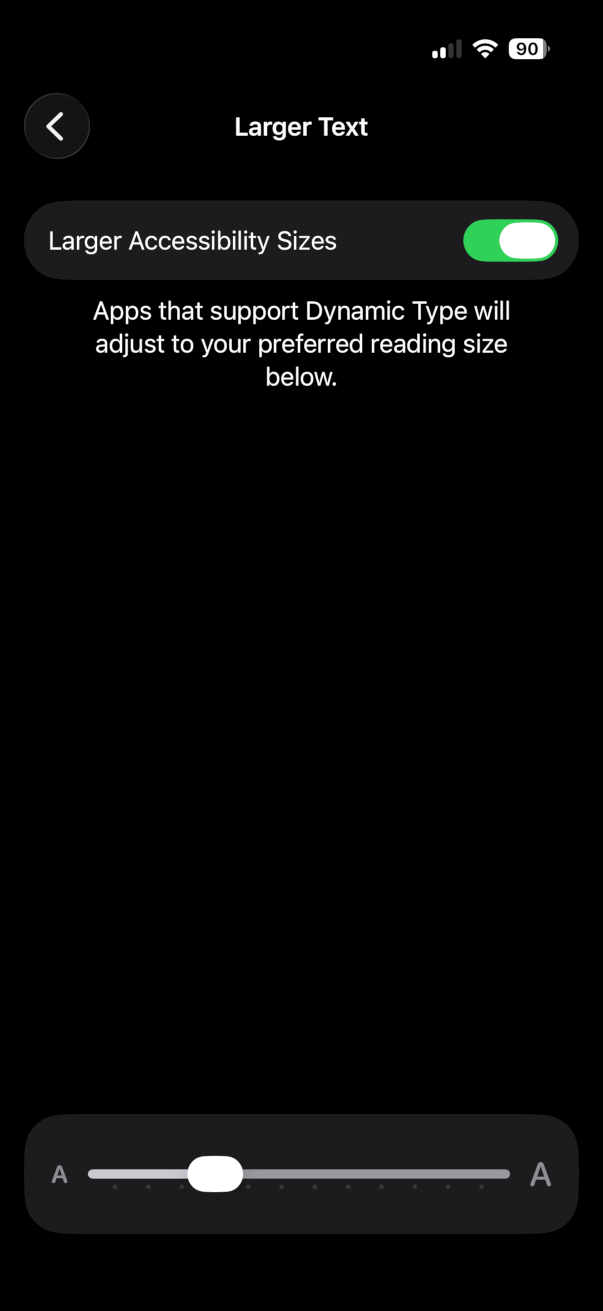
1. Open Settings > Accessibility > Display & Text Size > Larger Text
2. Turn on the toggle labelled "Larger Accessibility Sizes"
**\[Optional\]**
3. Swipe down from the top right corner of your iPhone screen, and tap and hold in an empty area
4. Activate "Add a control"
5. Add the "Text Size" widget
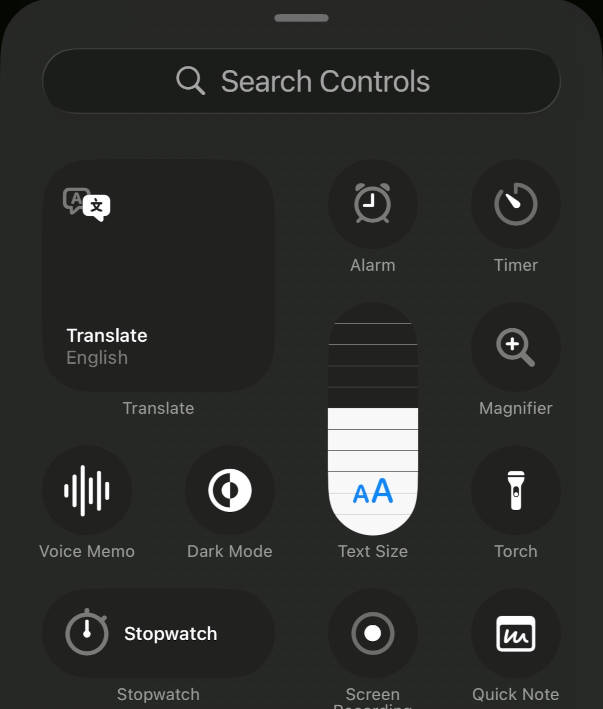
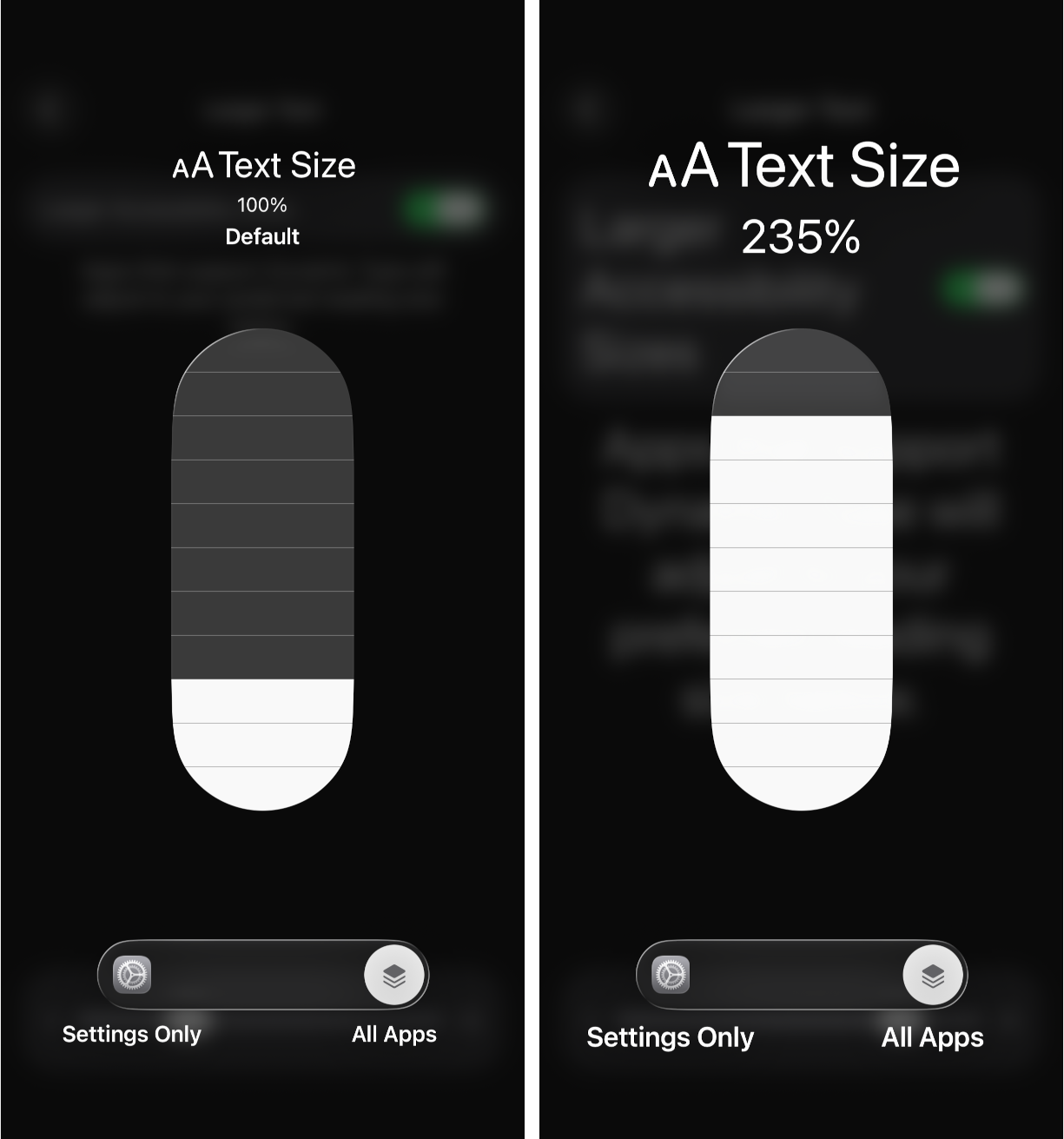
6. Once the widget has been added to the Controls, you can tap and hold the Text Size control and it will show you the text size as a percentage.
##### Accessibility inspector (semi-automated)
1. From Xcode, open the Xcode menu > Open Developer Tool > Accessibility Inspector
2. Select the target device
3. Activate "Run Audit"
4. If "Dynamic Type font sizes are unsupported" is displayed, then there is a text-resizing issue.
#### Android
##### Settings Menu (manual)
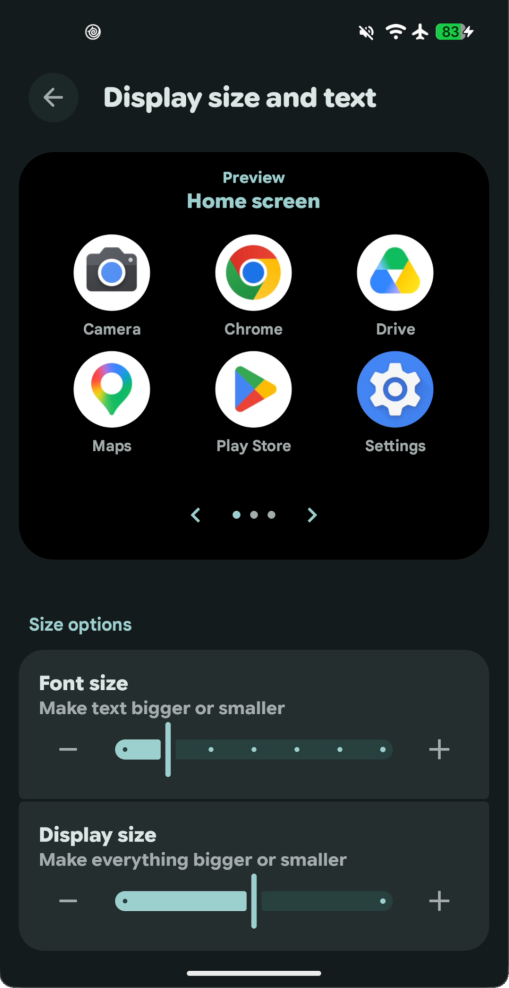
1. Open Settings > Display and Touch > Display and size and text
2. Select the desired size from the slider
##### Android Debug Bridge (manual)
Set the font scale with precision. To set the scale to 200%:
```bash
adb shell settings put system font_scale 2.0
```
and to reset the scale to 100%:
```bash
adb shell settings put system font_scale 1.0
```
### Manual testing process
1. Take a screenshot of the screen
2. Change the font scale to a higher scale
3. Take another screenshot
### Evaluation
**Expected results:** The app's text changes at every point up to 200 percent, or twice its original size, without loss of content or functionality. The result does not need to look good, the app needs to function.
**Actual results:** Some text does not grow, or larger text is cut off, overlapped, or truncated with an ellipsis.
## FAQ
**How does this issue relate to 1.4.4 Resize Text?**
SC 1.4.4 requires that, except for captions and images of text, text can be resized up to 200 percent without loss of content or functionality. When fixed font sizes ignore the system text size setting, or larger text is clipped or truncated, users cannot get readable text without losing content, so the criterion is not met.
**Why is this issue marked as Serious?**
People who need larger text may be unable to read the app's content or use its controls when text does not scale, or when it is cut off as it grows. This affects reading and tasks across the whole app, so it is rated serious.
## Standards and Regulations
| Standard | Success Criterion | Reference |
| --- | --- | --- |
| WCAG 2.2 | [1.4.4 Resize text](https://www.w3.org/TR/WCAG22/#resize-text) (AA) | Except for captions and images of text, text can be resized without assistive technology up to 200 percent without loss of content or functionality. |
| EN 301 549 | [11.1.4.4 Resize text](https://www.etsi.org/standards/etsi-301-549) | Same as the WCAG text. |
## Personas impacted by this issue
- [Low Vision](https://knowledge.evinced.com/a11y-essentials/personas#low-vision)
## Learn More
- [Understanding Success Criterion 1.4.4: Resize Text](https://www.w3.org/WAI/WCAG22/Understanding/resize-text.html)
## Related Issues
- [color-contrast](https://knowledge.evinced.com/mobile/mobile-validations/color-contrast)
- [minimum-text-size](https://knowledge.evinced.com/mobile/mobile-validations/minimum-text-size)
- [screen-orientation-consistency](https://knowledge.evinced.com/mobile/mobile-validations/screen-orientation-consistency)
- [screen-orientation-lock](https://knowledge.evinced.com/mobile/mobile-validations/screen-orientation-lock)
- [text-spacing](https://knowledge.evinced.com/mobile/mobile-validations/text-spacing)